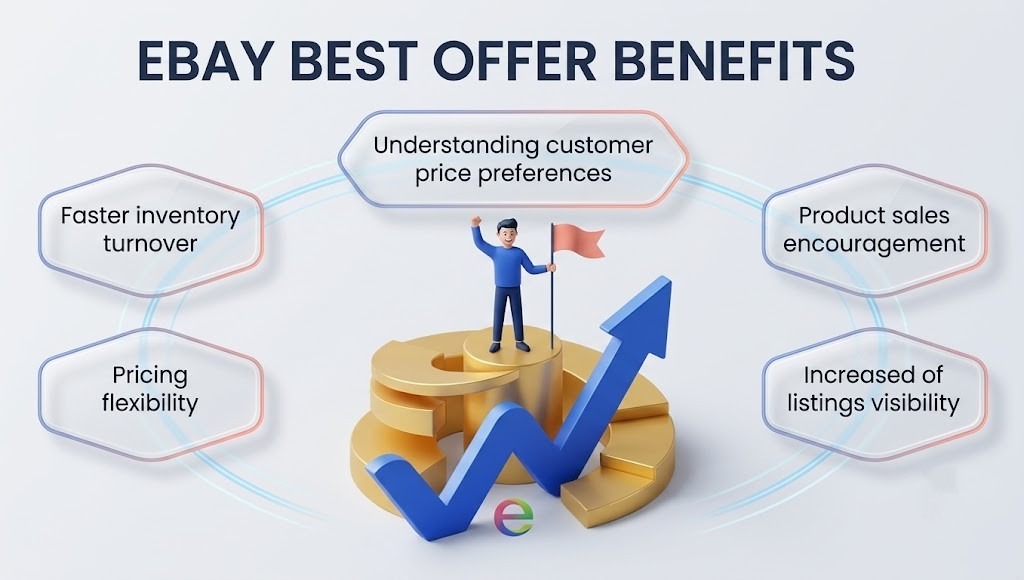
Most eBay sellers either ignore Best Offer entirely or enable it without any strategy behind it. Both are mistakes. Used correctly, Best Offer increases your sell-through rate by 15 to 25% on eligible items because it lets price-sensitive buyers negotiate without you having to list at a lower price from the start.
This guide covers how Best Offer actually works, how to set up auto-accept and auto-decline thresholds that protect your margin, when to counter instead of accept or decline, and how to use the Offer to Buyers feature to proactively close stale listings.
Table of Contents
- How Best Offer Works
- When to Enable Best Offer (and When Not To)
- Setting Your Listing Price for Best Offer
- Auto-Accept and Auto-Decline: The Real Strategy
- When to Accept an Offer Manually
- When to Decline
- When and How to Counter
- Offer to Buyers: The Proactive Version
- Promoted Listings and Best Offer: What to Know
- Common Mistakes to Avoid
How Best Offer Works
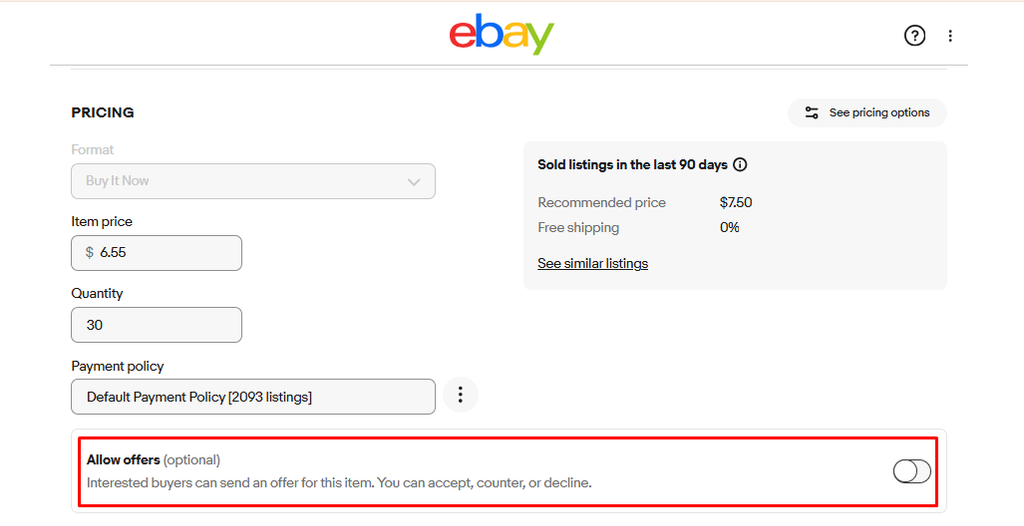
Best Offer is a negotiation feature available on Fixed Price listings. When you enable it, a Make Offer button appears on your listing and buyers can submit a price they are willing to pay. You then have 24 hours to accept, decline, counter, or let the offer expire. If you do not respond within 24 hours, the offer expires automatically.
A few mechanics that matter in practice:
- Buyers can make up to three offers per item in most categories, up to five in vehicle categories.
- Both you and the buyer can send a maximum of five counteroffers each during a negotiation.
- Once you accept an offer, the item remains available to other buyers until the winning buyer completes payment. Enabling autopay at the time of offer means payment is collected instantly upon acceptance.
- Best Offer is only available on Fixed Price listings, not auctions. If someone places a bid on an auction that also had Best Offer enabled, the Best Offer feature is automatically disabled and all pending offers are declined.
| You have 24 hours to respond to any offer. Buyers who make offers are often ready to purchase immediately.A slow response frequently means they have already bought from someone else. |
When to Enable Best Offer (and When Not To)
Best Offer is not right for every listing. Add it where negotiation makes sense and skip it where it does not.
Enable Best Offer when
- The item has been listed for more than two weeks without selling. Price-sensitive buyers who skipped it at full price may engage through an offer.
- You have some margin flexibility and the listed price already reflects a slight premium above your minimum acceptable price.
- The item is unique, collectible, or used, where perceived value varies significantly between buyers.
- You are selling slow-moving inventory you want to clear without running a public markdown promotion.
Do not enable Best Offer when
- Your item is already priced at or near your absolute floor with no room to negotiate.
- The item is selling consistently at full price. Enabling Best Offer on fast-moving items only invites buyers to pay less than they would have otherwise.
- You are selling in a very low-margin category where even a small discount makes the sale unprofitable.
Setting Your Listing Price for Best Offer
The most effective approach is to list 10 to 15% above your true target price when you plan to use Best Offer. This gives buyers the psychological satisfaction of negotiating a deal while you still hit your actual margin target.
Example: if you want to net $50 for an item, list it at $57. Set auto-accept at $50 and auto-decline at $38. Most buyers will offer somewhere between $45 and $52. You counter at $50 to $52 and the deal closes near your actual target without you having to accept a loss.
| Do not price so high that buyers scroll past without engaging at all.10 to 15% above target is the practical ceiling. Beyond that, the listing starts losing the initial clicks that bring offers in the first place. |
Auto-Accept and Auto-Decline: The Real Strategy
The auto-accept and auto-decline settings are where your Best Offer strategy actually lives. Setting these correctly means the system handles the majority of offers without you having to evaluate each one manually.
Auto-Accept
Set this at the lowest price you are genuinely happy to sell at. Any offer at or above this price is accepted instantly without you needing to respond. Most sellers set auto-accept at 85 to 90% of their listed price. For a $57 listing, that means auto-accepting anything at $48 to $51.
Auto-Decline
Set this to automatically reject offers below a price you would never accept. Any offer below this threshold is declined immediately and the buyer receives an automatic notification. Most sellers set auto-decline at 65 to 70% of the listed price to filter out lowball offers while leaving genuine negotiators in play.
With both thresholds in place, only offers landing in the zone between auto-decline and auto-accept require your manual attention. This middle zone is where your counter-offer decisions actually happen.
| Auto settings are not available for all categories. If the option does not appear in your listing form, the category does not support automatic responses.Listings using the Markdown Manager Promotions feature also cannot use auto responses. |
When to Accept an Offer Manually
When an offer lands in your manual review zone (between your auto-decline and auto-accept thresholds), accept it outright when:
- The offer is close enough to your target that the difference is not worth the risk of losing the buyer to a counter-offer round trip. If your target is $50 and they offer $48, accepting immediately is often the right call.
- The item has been listed for a long time and the offer represents real progress toward clearing it. A $44 offer on a listing that has sat at $57 for six weeks may be worth accepting rather than countering.
- You have multiple units and the buyer is purchasing more than one. Volume is worth a slightly lower per-unit price.
When to Decline
Decline an offer outright (rather than countering) when:
- The offer is below your auto-decline threshold but slipped through because auto settings were not configured for that listing. If it is genuinely too low to be worth engaging, decline cleanly.
- The offer is accompanied by an aggressive or disrespectful message. Counter-offering with a buyer who opens a negotiation rudely rarely leads to a smooth transaction.
- The item is priced correctly and you are not motivated to negotiate. Declining sends a cleaner signal than countering to a price you were never going to move from anyway.
| After you decline an offer, the buyer can still make additional offers (up to their three-offer limit).Declining does not end the negotiation permanently unless the buyer chooses not to re-engage. |
When and How to Counter
Countering is usually the best move when an offer lands in your middle zone and you want the sale but not at the offered price. A well-placed counter closes most negotiations in one round.
How to counter effectively
- Counter to a price that is specific and justified, not just splitting the difference for the sake of it. If your target is $50 and they offered $42, counter at $50 with a clear reason (your lowest price, limited quantity, or whatever is true).
- Meet them closer to the middle only if you have flexibility and the item has been sitting. For a stale listing, a counter at $47 on a $42 offer moves it forward without giving away your full margin.
- Keep counter-offer messages brief and professional. You do not need to explain every decision, and a lengthy message often signals that you are more motivated to negotiate than you actually are.
- Respond within a few hours, not 24 hours. Buyers making offers are usually in buying mode right now. A counter that arrives the next day often finds a buyer who has already moved on.
Both you and the buyer can exchange up to five counteroffers each. In practice, most successful negotiations close in one or two rounds. If you are still going back and forth after three rounds, the buyer and seller likely have fundamentally different price expectations and it is unlikely to resolve.
Offer to Buyers: The Proactive Version
Offer to Buyers is a separate feature that lets you initiate a price negotiation rather than waiting for a buyer to make an offer. If a buyer has been watching your item or has added it to their cart within the last five days, you can send them a special offer at a lower price directly.
This is particularly effective for:
- Listings that have accumulated watchers but no purchases, suggesting buyer interest at a lower price than what is listed
- Slow-moving inventory you want to clear without publicly marking down the price and affecting Cassini’s perception of the listing
- Items where the current listed price is slightly above what the market will bear but a targeted offer to an interested buyer closes the gap
To send an offer, go to Seller Hub > Active Listings and select Send offer next to an eligible item. You can set a custom price and optionally block the buyer from countering if you want the offer to be a take-it-or-leave-it price.
| Items must be in a buyer’s cart for at least 2 days before you can send them an offer.Not all listings are eligible for Offer to Buyers. Eligibility depends on listing age, format, and category rules. |
Promoted Listings and Best Offer: What to Know
If you are running a General (cost-per-sale) Promoted Listings campaign and a buyer accepts your Best Offer after clicking one of your promoted ads within the last 30 days, you will be charged an ad fee based on the final total sale amount, including the negotiated price plus shipping and taxes. The ad fee applies to the discounted price, not your original listed price.
This means that on heavily discounted Best Offer sales, your effective ad cost as a percentage of revenue is higher than on full-price sales. Factor this into how much margin you are willing to negotiate away on promoted listings.
Common Mistakes to Avoid
- Enabling Best Offer without setting auto-accept and auto-decline thresholds. Without these, you are either manually reviewing every offer (time-consuming) or accepting lowball offers you would not have taken if you had thought it through in advance.
- Not pricing the listing with negotiation in mind. If you list at your absolute floor and then enable Best Offer, any accepted offer is a loss. List 10 to 15% above your target so negotiations land where you actually want them.
- Responding slowly. Buyers who make offers are in buying mode right now. Waiting 12 to 24 hours to respond loses a significant proportion of offers to competing sellers.
- Countering repeatedly without closing. If a negotiation runs to three or four rounds without closing, the gap is probably too wide. Decline or accept and move on rather than losing more time.
- Enabling Best Offer on fast-selling items at competitive prices. If your item sells at full price within days of listing, Best Offer only trains buyers to offer less. Remove it from your best-performing listings.
- Ignoring the Offer to Buyers feature. Sending a targeted offer to a buyer who is already watching your item is one of the most efficient ways to close a sale without affecting your public listing price.
Best Offer is a tool that rewards sellers who use it deliberately. Set your listing price with room to negotiate, configure your auto thresholds before the first offer arrives, respond quickly when a manual decision is needed, and use the counter-offer to close rather than to keep negotiating. Done well, it consistently increases sell-through rate without forcing you into publicly lower prices.