Composite items are virtual products created in Linnworks by combining two or more individual SKUs. A composite SKU represents the combined product and relies on its component SKUs for stock availability and order processing. It cannot function independently of its component items.
Once created, composite items can be listed on supported sales channels, such as eBay, Amazon, and Magento, using the usual listing process.
How to View the Composition of a Composite Item
You can view the component SKUs that make up a composite item directly in Linnworks.
Follow these steps:
- Navigate to Inventory → My Inventory.
- Search for the individual SKU or composite SKU you want to view.
- Double-click the relevant listing to open its details.
- Locate the Composition option to view the SKUs included in the composite item.
This allows you to check which products are included in a multipack and understand how the composite SKU is structured.
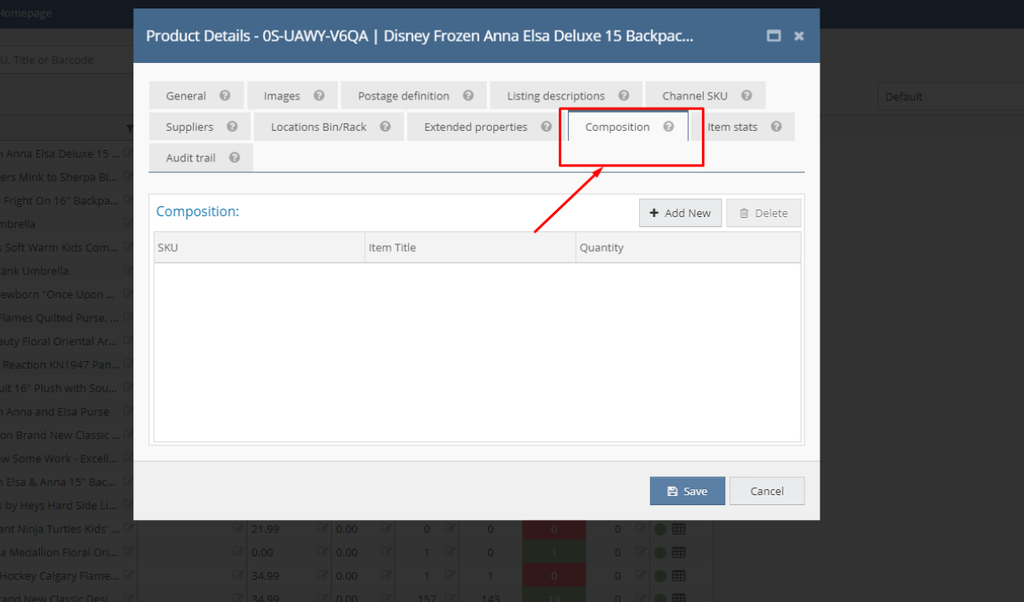
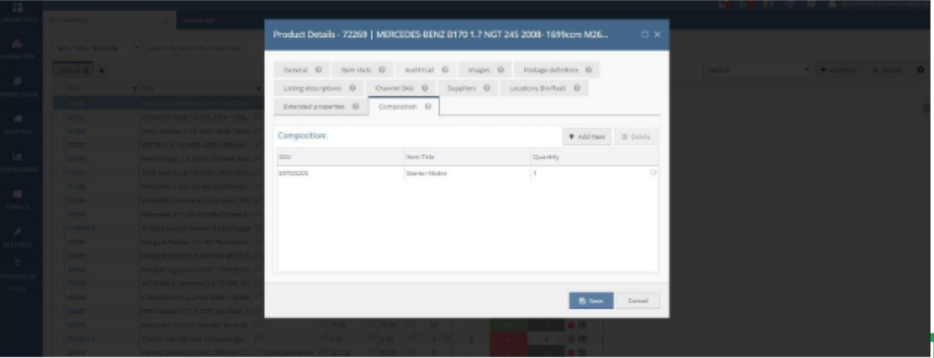
If you look above to Figures, Figure: 1 has no composite SKU Figure: 2 has a Composite SKU.
How to Create Composite Items in Linnworks Integration
- Create a Relevant Category: First, create a category in Linnworks that is relevant to the item you want to list. To do this, navigate to Inventory → Categories and click Add New. Enter a suitable category name and save it.
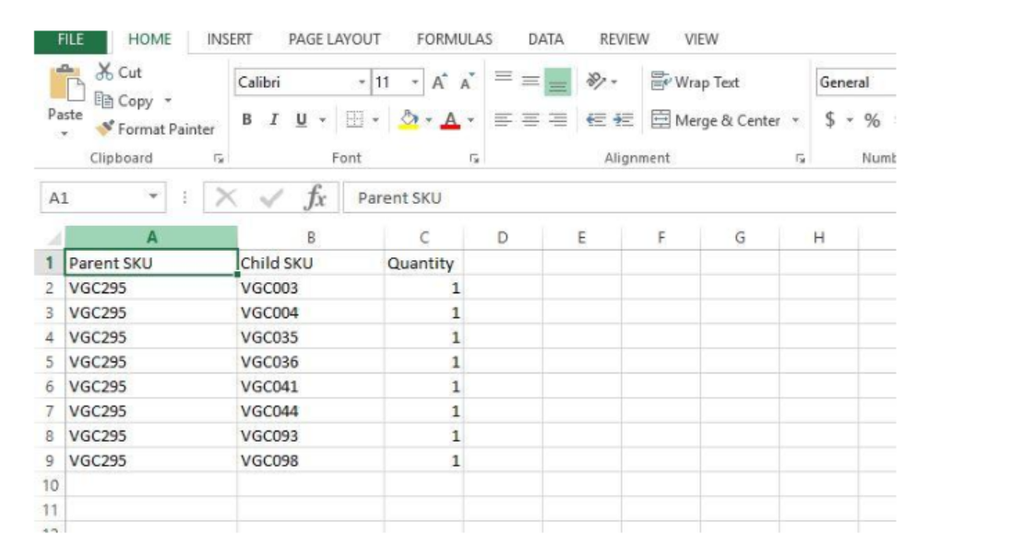
- Prepare the Composite SKU Feed File: As shown in Figure 4, Column A contains the Parent SKU, which remains the same for all rows belonging to the composite item. Column B contains the Child SKUs, which may differ depending on the products included in the multipack. The Parent SKU is referred to as the Composite SKU.
Important: In Column C, always enter the quantity as 1 for each child SKU, as required by this feed format to establish the relationship between the Composite SKU and its Child SKUs. - Save the Feed File: Once you have completed the feed file, save it in CSV format to ensure it is ready for import into Linnworks.
- Import the File into Linnworks: Log in to Linnworks.net, navigate to Settings → Import Data, and click Import Now to begin the import process.

- A Popup Window likes the following with show up.

Enter the Import Name and Select the Correct Type: Enter a name of your choice in the Name field. Then, open the Type dropdown menu and select Stock Items Compositions.
Important: Selecting the correct import type is essential. If you choose the wrong type, you will not be able to create composite items successfully. Always select Stock Items Compositions from the dropdown menu.

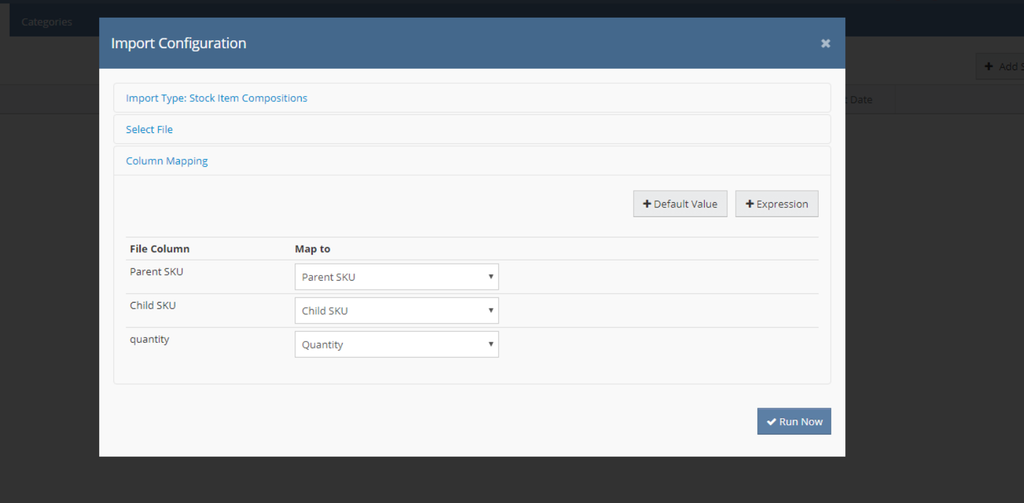
- After that, we must select the feed file that we want to upload. Then we must do the mapping which is very important. The format for the Mapping is:
- Parent SKU = Parent SKU
- Child SKU = Child SKU
- Quantity = Quantity
- After the Mapping, Click on Run Now Button.
How do you confirm The Composition is successfully done?
Go to INVENTORY-> My Inventory-> Then Search for your child SKU in the Search field.
Then Double Click the SKU file- Go to the Product Details Page. Then Click Composition Field. If the Composition is successfully done, It will show the Composite SKU in the SKU Field.