A+ Content replaces the standard product description with structured visual content: images, comparison charts, lifestyle photos, and formatted text. It is free for every Brand Registry seller, but most implementations underperform because sellers treat it as a design exercise rather than a conversion tool.
A well-built A+ page is structured around what a shopper needs to answer before they buy, not around what the seller wants to say about the product. This guide covers eligibility, the difference between Standard and Premium A+, module strategy, image specs, what to avoid, and how to measure whether the work actually paid off.
Table of Contents
- What A+ Content Actually Does (and What It Does Not)
- Eligibility: Standard vs Premium A+
- How to Access and Create A+ Content
- Module Strategy: Which Modules to Use and in What Order
- Image Specifications
- Writing Copy for A+ Content
- Mobile-First Design: The Most Ignored Best Practice
- Optimizing for Amazon Rufus
- What Amazon Will Reject
- How to Measure Whether It Worked
- Common Mistakes to Avoid
What A+ Content Actually Does (and What It Does Not)
Before building anything, it helps to be clear on what A+ Content actually influences.
- It improves conversion rate. Amazon’s own data shows Standard A+ can lift sales by up to 8%, Premium A+ by up to 20%. Real-world results are highly category-dependent: products in considered-purchase categories like supplements, home goods, and beauty tend to see the largest lifts. Commodity products with strong price competition see smaller deltas.
- It reduces return rates. Better visual explanation of size, use case, and what is included in the box sets accurate expectations. Fewer surprises after delivery means fewer returns.
- It is not indexed for keyword search. A+ Content text does not feed Amazon’s search algorithm directly. Your title, bullets, and backend search terms are still the keyword fields that drive search ranking. A+ helps indirectly by improving conversion rate, which over time signals to Amazon that your listing is more relevant.
- It does affect Google. Google can crawl Amazon product pages including A+ text and image alt attributes. A+ Content can help your listing appear in Google search results, driving external traffic that Amazon also rewards.

| A+ Content is a conversion lever, not a keyword surface.Sellers who stuff A+ modules with keyword phrases rather than customer-relevant content miss the point entirely and usually see little improvement in conversion rate. |
Eligibility: Standard vs Premium A+
Standard A+ Content
Available for free to every seller enrolled in Amazon Brand Registry. Standard A+ gives you access to a library of image and text modules including hero images, image-and-text sidebars, comparison charts, and four-image grids. Once published, it replaces the standard product description on the detail page.
Premium A+ Content
Premium A+ (also called A++) unlocks additional module types: video, interactive image hotspots, enhanced comparison charts with more rows, carousels, and larger full-width image modules. It is also free, but gated behind two requirements that Amazon currently uses to determine eligibility:
- A Brand Story published across your catalog
- At least 5 approved Standard A+ submissions within the trailing 12 months
Check your current eligibility inside A+ Content Manager. If Premium modules are available when you create a new project, you already have access. Amazon adjusts these thresholds periodically, so what was required six months ago may have changed.

| A well-executed Standard layout consistently outperforms a poorly designed Premium one.Premium modules add creative flexibility. They do not add conversion by themselves. |
How to Access and Create A+ Content
- Log in to Seller Central and go to Advertising > A+ Content Manager.
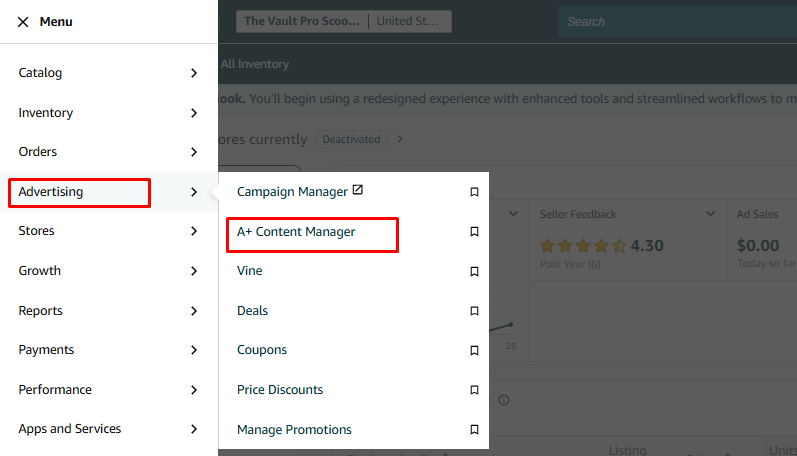
- Click Create A+ Content and choose Standard or Premium.

- Name your project (internal use only, not visible to shoppers).
- Select and arrange your modules. You can reorder them by dragging.
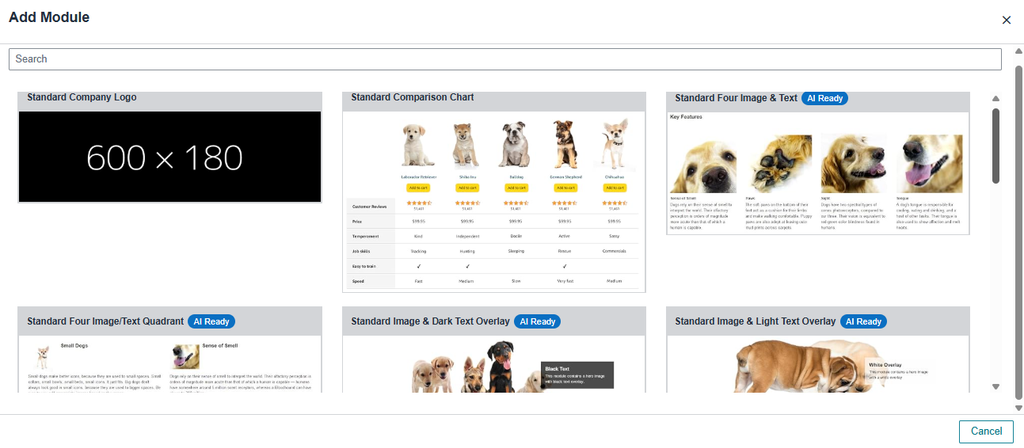
- Upload images and add copy to each module following the specs for that module type.
- Assign the content to your ASINs. One A+ project can be applied to multiple ASINs or an entire variation family at once.

- Preview your content, checking both desktop and mobile views before submitting.

- Click Submit for Review. Standard A+ is typically approved within 24 to 7 business days. Premium A+ takes longer due to video and interactive element review.
Module Strategy: Which Modules to Use and in What Order
Module selection and sequencing directly affect conversion rate. The guiding principle is to structure your A+ page the way a customer thinks, not the way you want to present your product.
Think in three sections:
Top section: Emotional connection
Answer: what problem does this solve and is it for me? Use your strongest lifestyle image or a hero image that immediately communicates the product’s core benefit. A headline that addresses the customer’s need directly, not the product’s features. This is your first impression and on mobile it is often the only impression if the rest of the page does not pull the shopper down.
Middle section: Logical justification
Answer: why is this product the right choice? Use feature callout modules, ingredient or material detail breakdowns, and a comparison chart if you sell multiple variants or complementary products. This is where you justify the purchase rationally after the emotional hook.
Bottom section: Trust and confidence
Answer: what if something goes wrong? Use warranty, quality assurance, brand story, and what is included in the box. Reduce the last remaining hesitation before the buyer decides.
| Each module should have one clear purpose, one clear takeaway, and one clear visual focus.If you cannot say in one sentence what job a module is doing, it does not belong in your A+ page. |
Image Specifications
Amazon’s image requirements differ by module type. Using the wrong size produces cropping or compression artifacts that immediately reduce perceived quality.
- Header image with text: 970x600px
- Full-width image: 970x300px
- Image and text (side by side): 300x300px on the image side
- Comparison chart thumbnails: 150x300px
- Premium hover hotspot: 970x600px
- Video (Premium only): MP4 format, 1280x720px minimum, 16:9 orientation, 15 to 60 seconds
Design all images at 2x the module requirement (for example, 1940px for a 970px module) and export as JPEG for photos or PNG for graphics. Keep file sizes under 2MB per image. Use RGB color mode throughout. Compress before uploading to avoid slow load times on mobile connections.
| If your A+ images look slightly blurry or over-compressed on a retina screen, you likely exported at 1x instead of 2x.Check on an actual phone screen, not just the Seller Central preview. |
Writing Copy for A+ Content
A+ copy should sound conversational and educational rather than marketing-speak. The goal is to help shoppers understand the product faster, not to repeat what is already in the title and bullets.
- Keep text per module tight. Three to four lines is usually the maximum before mobile readers start skipping.
- Lead with the benefit in every headline, not the feature name.
- Use plain language. A+ Content is often the first time a shopper reads in depth about your product. Jargon increases cognitive load and reduces conversion.
- Do not repeat bullet point content. A+ is your chance to add context, story, and visual proof that bullets cannot provide.
Mobile-First Design: The Most Ignored Best Practice
Over 70% of Amazon shopping in 2026 happens on mobile. On the Amazon app, A+ Content often appears immediately below the product images and price, before the bullet points. This means for many mobile shoppers, A+ is the primary sales pitch, not a supplementary section below the fold.
On mobile, modules stack vertically. Shoppers scroll, they do not scan left to right. They stop for large high-contrast headlines, faces or lifestyle imagery, and anything that directly answers a question they have. They skip dense text blocks and anything that looks like it requires reading effort.
- Preview your A+ Content on an actual smartphone before submitting. The Seller Central desktop preview does not reveal how modules render on a 6-inch screen.
- If your first two modules are weak, text-heavy, or visually unclear, mobile shoppers are gone before reaching your stronger content further down.
- For Premium A+, upload mobile-optimized images separately where the module supports it, since the mobile rendering of desktop-sized images often looks compressed.
Optimizing for Amazon Rufus
Amazon’s AI shopping assistant Rufus reads A+ Content as part of its product evaluation process. This has added a second audience to every A+ page: not just human shoppers reading the content directly, but Rufus reading it to decide whether your product should be recommended in response to a shopper’s conversational query.
Rufus rewards content that clearly answers the questions shoppers ask about a product category. This means:
- Write alt text for every image. Alt text is invisible to shoppers but read by Rufus and by screen readers. Describe what the image shows and what it communicates about the product. Do not leave alt text blank and do not keyword-stuff it.
- Include use-case language throughout: who is this for, when would they use it, what problem does it solve. These are the phrases Rufus draws from when matching products to conversational queries.
- Be factually consistent across your A+ Content, bullets, and title. Contradictions between sections reduce Rufus’s confidence in recommending your product.
What Amazon Will Reject
Amazon reviews every A+ submission before publishing. The most common rejection reasons in 2026:
- Promotional language: any mention of price, discount, sale, free shipping, warranty terms, or time-limited offers
- Competitor mentions or comparisons to other brands by name
- Contact information, external links, or website URLs of any kind
- Unverifiable claims stated as facts without evidence
- Low-resolution images or images with text that violates Amazon’s overlay guidelines
- References to your seller feedback, reviews, or star ratings
Amazon will give you a specific rejection reason. Fix exactly what is flagged and resubmit. Do not make additional changes at the same time, since this makes it harder to identify what caused the original rejection.
How to Measure Whether It Worked
The only metric that confirms A+ Content is doing its job is conversion rate change at the SKU level.
In Business Reports under Detail Page Sales and Traffic, track your Unit Session Percentage (conversion rate) for the ASIN before and after publishing. Allow at least 30 days after publishing before drawing conclusions, since the first few days can be noisy.
For a more rigorous test, use Amazon’s Manage Your Experiments tool in A+ Content Manager. This splits traffic between two versions of your A+ Content and shows statistically significant performance differences. Tests run for 4 to 10 weeks depending on the ASIN’s traffic volume.
| If conversion rate does not improve after 30 to 60 days, the issue is almost always the module strategy or the images, not the A+ feature itself.Start by testing the first visual module since it has the greatest impact on whether a shopper continues scrolling. |
Common Mistakes to Avoid
- Leading with product features instead of customer benefits. If the first module reads like a spec sheet, you have lost most mobile shoppers immediately.
- Repeating bullet point content. A+ is additional context and proof, not a visual version of what is already above it on the page.
- Skipping mobile preview before submitting. Most A+ formatting problems are only visible on mobile. Check it on an actual phone.
- Leaving alt text blank. This hurts both Rufus discoverability and accessibility. Write descriptive alt text for every image.
- Using Premium modules without a design strategy. More modules does not mean better conversion. A clean, purposeful Standard layout beats a cluttered Premium one.
- Never testing different versions. Once A+ is published, most sellers never revisit it. Use Manage Your Experiments on your top-revenue ASINs to find out what actually converts better.
A+ Content works when it is built around customer questions rather than brand announcements. Start with who lands on your page and what they need to know before buying. Structure your modules to answer those questions in order. Preview on mobile before submitting. Then measure the conversion rate impact at the SKU level rather than assuming the effort paid off.
Have questions about a specific module strategy or an A+ submission that keeps getting rejected? Leave a comment below.