Most sellers focus entirely on individual product listings and overlook their Amazon store profile. But your store page is often what a shopper checks before deciding to trust you as a seller. A complete, well-optimized store builds credibility, reduces friction, and directly influences whether a first-time visitor comes back.
This guide covers how to set up and optimize every part of your Amazon store from Seller Central, including your seller profile, logo, shipping and privacy policies, and the Brand Store builder for sellers in Amazon Brand Registry.
Table of Contents
- Seller Profile vs Brand Store: Which One Do You Have?
- How to Access Your Store Settings
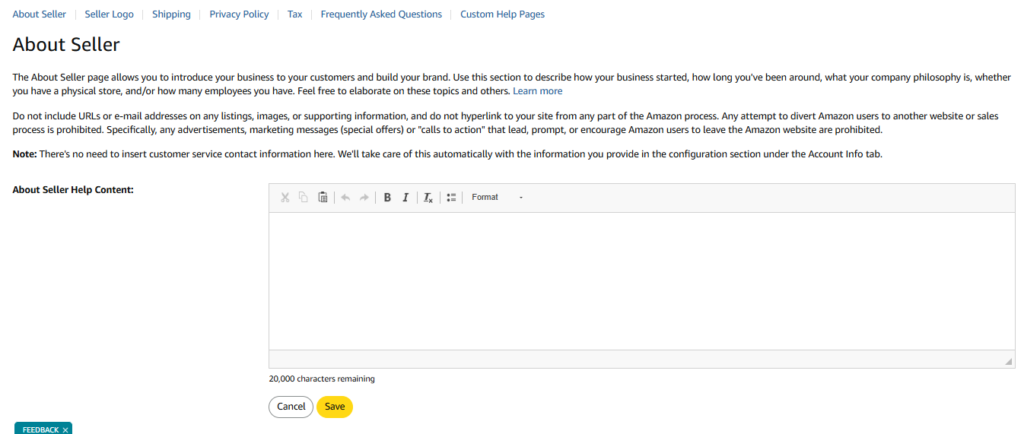
- About Seller: Writing Your Business Profile
- Seller Logo Requirements
- Shipping Policies
- Privacy Notice
- FAQ and Custom Help Pages
- Brand Store Optimization for Brand Registered Sellers
Seller Profile vs Brand Store: Which One Do You Have?
All Amazon sellers have a Seller Profile. It includes your business name, logo, about section, and policy pages. Shoppers see it when they click your seller name on any product page.
If you are enrolled in Amazon Brand Registry, you also get access to the Brand Store builder, which is a completely separate tool. A Brand Store works like a mini website inside Amazon with custom layouts, lifestyle imagery, video, and sub-pages organized by product category. If you are Brand Registered, building and maintaining a Brand Store is one of the most impactful things you can do for your Amazon presence.
| Brands that regularly update their Storefront earn around 13% more revenue per visitor.Sponsored Brand ad traffic sent to a Brand Store sees up to 55% more pageviews than traffic sent to a product page. |
How to Access Your Store Settings
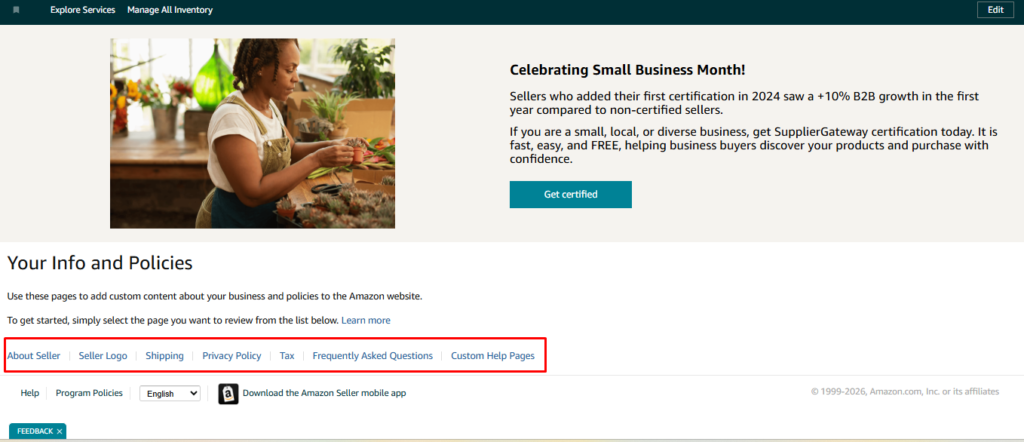
Log in to Seller Central and navigate to:
| Settings > Your Info and Policies |
From here, you will find tabs for your Profile, Shipping, Returns, and Policies. Each tab controls a different section of what customers see on your seller page.
About Seller: Writing Your Business Profile
The About Seller section introduces your brand to shoppers who want to know more before buying. A good profile answers the question a first-time visitor is already asking: who are you and why should I trust you?
Include:
- How your business started and what it focuses on
- How long you have been operating
- Your brand values or what sets your products apart
- The type of customer you serve
| Do not include phone numbers, email addresses, or website links in this section.Amazon manages customer service contact details separately through your Account Info settings. External links here violate Amazon policy. |
Seller Logo Requirements
Amazon has two separate logo fields in the current interface.
Business Logo
Appears on the Other Sellers on Amazon page next to your seller name.
- Format: JPG, JPEG, or GIF
- Dimensions: 120 x 30 pixels exactly
- Maximum file size: 20,000 bytes
- No animation, no website URLs or email addresses on the image
Profile Logo
Appears on your Seller Profile page alongside your seller name.
- Format: PNG, JPG, JPEG, or GIF
- Maximum file size: 10 MB
- Minimum dimensions: 150 x 150 pixels
- No animation
| Use a clean, high-contrast logo that reads well at small sizes. Avoid thin text or busy backgrounds. |
Shipping Policies
Your shipping policy section has two parts. Both are worth filling in carefully, especially if any of your products are fulfilled by merchant rather than FBA.
Shipping Policies Help Content
Your general shipping policy. Include when you ship orders, which carriers you use, and any delivery restrictions such as no PO boxes or APO addresses.
Shipping Rates Help Content
Your actual shipping costs broken down by region (continental US, Alaska, Hawaii, international) and speed (standard, expedited). Note any exceptions for heavy or oversized items.
Privacy Notice
This section explains how you handle customer data that Amazon shares with you as part of an order. Your statement appears below Amazon’s own privacy policy on your seller page.
Keep it simple and specific:
- State that you use customer information only for order fulfillment and customer support
- State that you do not sell or share customer data with third parties
- Do not post anything that conflicts with Amazon’s platform policies
FAQ and Custom Help Pages
The FAQ page lets you answer common questions in a simple Q&A format. Use it for questions you actually receive most often, such as your return process, packaging, compatibility, or shipping restrictions. Short, direct answers work best.
Custom Help Pages are available if you need additional space for things like size guides, product care instructions, or warranty details. They are optional but useful for brands with complex products or high customer service volume around specific topics.
Brand Store Optimization for Brand Registered Sellers
If you are Brand Registered, go to:
| Stores > Manage Stores > Create Store |
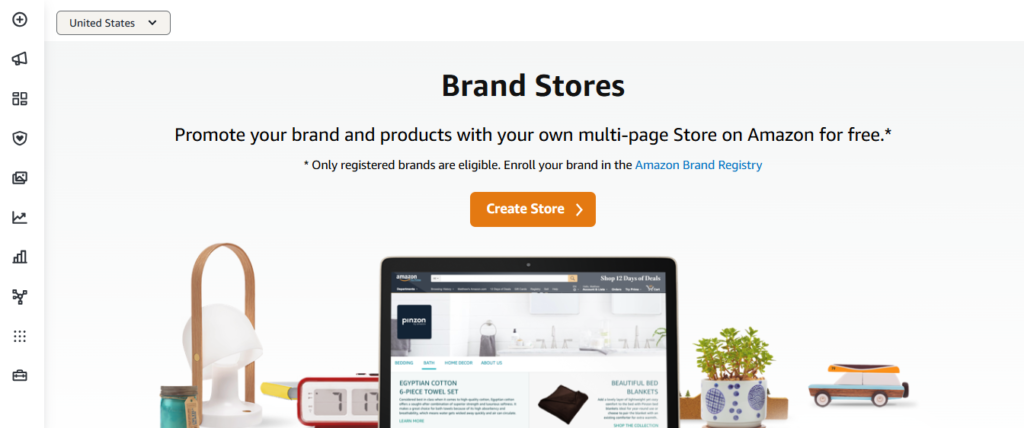
Amazon provides drag-and-drop templates to start from. You can also build a custom layout. Once your store is submitted, Amazon reviews and approves it within 72 hours.
Structure and Navigation
Keep it simple. Three to five sub-pages organized by product category or use case is enough for most brands. Common sub-pages: New Arrivals, Best Sellers, and category-specific pages. Too many sub-pages create confusion.
Visual Content
- Use a strong hero image or short brand video on your homepage
- Use lifestyle images throughout your store, not just product-on-white shots
- Use shoppable images where shoppers can click directly on a product in a lifestyle photo
- Keep image quality consistent across all pages
Store Copy
Keep text short throughout. Shoppers scan; they do not read. Two to three lines per section is enough. Use headlines to guide shoppers: “For the Home Office,” “Best for Beginners,” “Our Most Popular.”
After Publishing
- Link your Sponsored Brand ads to your Brand Store instead of individual product pages. It increases pageviews and conversion rates.
- Update your store regularly with seasonal promotions and new arrivals. Amazon rewards stores that stay active.
- Check the Stores Insights dashboard monthly for traffic, pageviews, and sales by page. Use it to identify what is working and what needs improvement.