Once your Linnworks warehouse and product catalog are set up, the next step is connecting your actual sales channels. Each platform has its own authorization process, and the steps differ enough between Amazon, eBay, and Shopify that following a generic Add New instruction is not always enough to get a clean connection on the first try.
This guide walks through connecting each of the three most common channels individually, including the platform-specific requirements and authorization steps for each, plus what to check immediately after connecting to confirm the integration actually works.
Table of Contents
- Before You Connect Any Channel
- How to Connect Amazon to Linnworks
- How to Connect eBay to Linnworks
- How to Connect Shopify to Linnworks
- What to Check After Connecting Any Channel
- Common Connection Issues and How to Fix Them
Before You Connect Any Channel
A few things apply across all three platforms, so confirm these before starting:
- Your Linnworks warehouse and product SKUs should already be set up. Connecting a channel before this is in place is the most common cause of sync problems later.
- You need admin or owner-level access to each sales channel account, since the authorization process requires permissions that a staff or limited-access account will not have.
- Keep a browser window open and logged into each channel separately, since most of these integrations redirect you to the channel’s own login page mid-process.


How to Connect Amazon to Linnworks
Amazon’s integration requires a few prerequisites that the other two platforms do not.
What you need first: An Amazon Professional Seller account is required, since the integration relies on Amazon’s API, which is not available to Individual seller accounts. If you sell on more than one Amazon marketplace under a Unified Account (for example both Amazon.com and Amazon.co.uk), you will need to set up a separate Linnworks channel integration for each individual marketplace.
Steps to connect
- Log in to your Amazon Seller Central account first, in the same browser you will use for the rest of this process.
- In Linnworks, go to Settings > Channel Integration.
- Click Add New, select Amazon from the channel list, and click Next.
- Select your Amazon marketplace (site) from the dropdown and enter your Amazon Merchant Name.
- Linnworks will display a link to authorize the connection. Click Authorize with Amazon, which opens Amazon’s authorization page in your browser.
- Log in with your Amazon Seller Central credentials if prompted, then approve the access request, granting Linnworks permission to access your seller account.
- Amazon will return you to Linnworks automatically once authorization completes. Click Finish to complete the setup.

| Important note for 2026: Amazon has required Linnworks to update its integration for security reasons.If you set up an Amazon integration some time ago and are experiencing authorization errors, check whether your account needs to be migrated to the newer authorization method through Settings > Channel Integration > Edit Channel Details. |
How to Connect eBay to Linnworks
eBay’s connection process uses a token-based authorization system, and unlike Amazon and Shopify, eBay tokens can expire periodically and need to be renewed.
Steps to connect
- In Linnworks, go to Settings > Channel Integration.
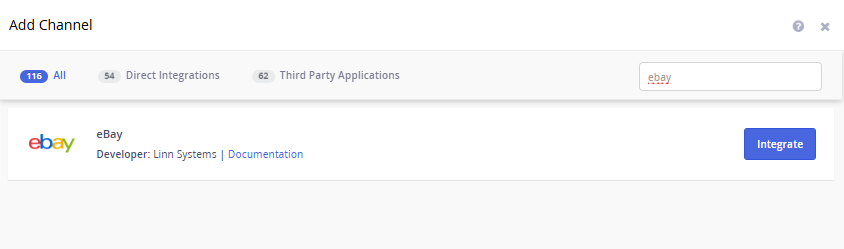
- Click Add New and select eBay from the channel list.
- Linnworks will start the eBay Channel Integration Wizard. Follow the on-screen steps, which will redirect you to eBay’s sign-in page.
- Sign in using your eBay account email address rather than your username. This distinction matters, since signing in with a username instead of an email is a common cause of authorization failing even though eBay shows the connection as authorized on its own end.
- On the next screen, eBay will ask you to grant application access to Linnworks (listed as Linn Systems LTD). Click I Agree.
- Return to Linnworks and click Finish to complete the integration.
- Click Test next to the new eBay channel to confirm the connection is working correctly.
| A note on tokens: eBay authentication tokens are not permanent. They can expire due to a password change, business detail update, or simply after a period of time for security reasons.If you see an error stating the eBay authorization token has expired, go to Settings > Channel Integration, click Config next to your eBay channel, and click Test. This prompts you through re-authorization, renewing the token without removing the integration. |
How to Connect Shopify to Linnworks
Shopify’s connection process is the most straightforward of the three, since it uses a standard OAuth flow similar to installing any Shopify app.
Steps to connect
- In Linnworks, go to Settings > Channel Integration.
- Click Add New, search for Shopify, and select the integration.
- You will be redirected to your Shopify admin panel to approve the connection. This grants Linnworks API access to your store’s orders, inventory, and product data.
- Once authorized, you will be returned to Linnworks automatically.
- Configure your sync preferences: order import frequency, whether stock updates push automatically, and which listing fields Linnworks is allowed to control.
- Assign the correct warehouse location to this Shopify channel, and confirm your default country of origin and currency settings.

| The most important detail for Shopify specifically: the SKU in each Shopify product variant must exactly match the corresponding SKU in Linnworks, character for character.Shopify often leaves the variant SKU field blank by default, especially for products with multiple variants like size or color. Before testing your sync, go to Products, open each product, check the Variants tab, and confirm every variant has a SKU filled in. A blank SKU field means that specific variant will not sync stock at all. |
What to Check After Connecting Any Channel
Regardless of which platform you just connected, run through this list before considering the integration complete:
- Confirm the channel shows as Enabled or Connected in the Channel Integration list, not just authorized
- Check that your warehouse location is correctly assigned to the new channel under its configuration settings
- Pull in a small batch of recent or test orders and confirm they appear in Linnworks with accurate SKUs, quantities, and customer details
- Manually adjust the stock count for one test SKU in Linnworks and confirm the change reflects on the live channel within a few minutes

Common Connection Issues and How to Fix Them
- Amazon: Unified Account marketplaces not all connecting. Each Amazon marketplace under a Unified Account needs its own separate channel integration in Linnworks. Connecting one marketplace does not automatically connect the others.
- eBay: Authorization keeps failing even though eBay shows it as authorized. This is almost always caused by signing in with a username instead of an email address during the authorization step. Revoke the existing token from eBay’s Third-Party Application Access settings and run through the Linnworks authorization wizard again, using your email address to sign in.
- eBay: Token expired error appears after some time. Go to Settings > Channel Integration, click Config next to eBay, and click Test. Follow the re-authorization prompts that appear. This regenerates the token without affecting your existing channel settings or order history.
- Shopify: Specific product variants not syncing stock. Check the Variants tab on the affected Shopify product and confirm the SKU field is filled in and matches the SKU in Linnworks exactly, including capitalization.
- Any channel: Orders not importing after a successful connection. Check your order import settings under the channel’s configuration to confirm import frequency is set correctly, and verify the channel’s connection status has not silently reverted to requiring re-authorization.
Each of these three platforms has its own quirks, but the underlying pattern is the same: authorize the connection, assign the correct warehouse, confirm SKUs match exactly, and test before treating the integration as live. Getting this right the first time for each channel saves significant troubleshooting time later, especially once order volume picks up and a sync issue becomes harder to spot among a larger volume of orders.
Have questions about a specific connection error or a channel not covered here? Leave a comment below.