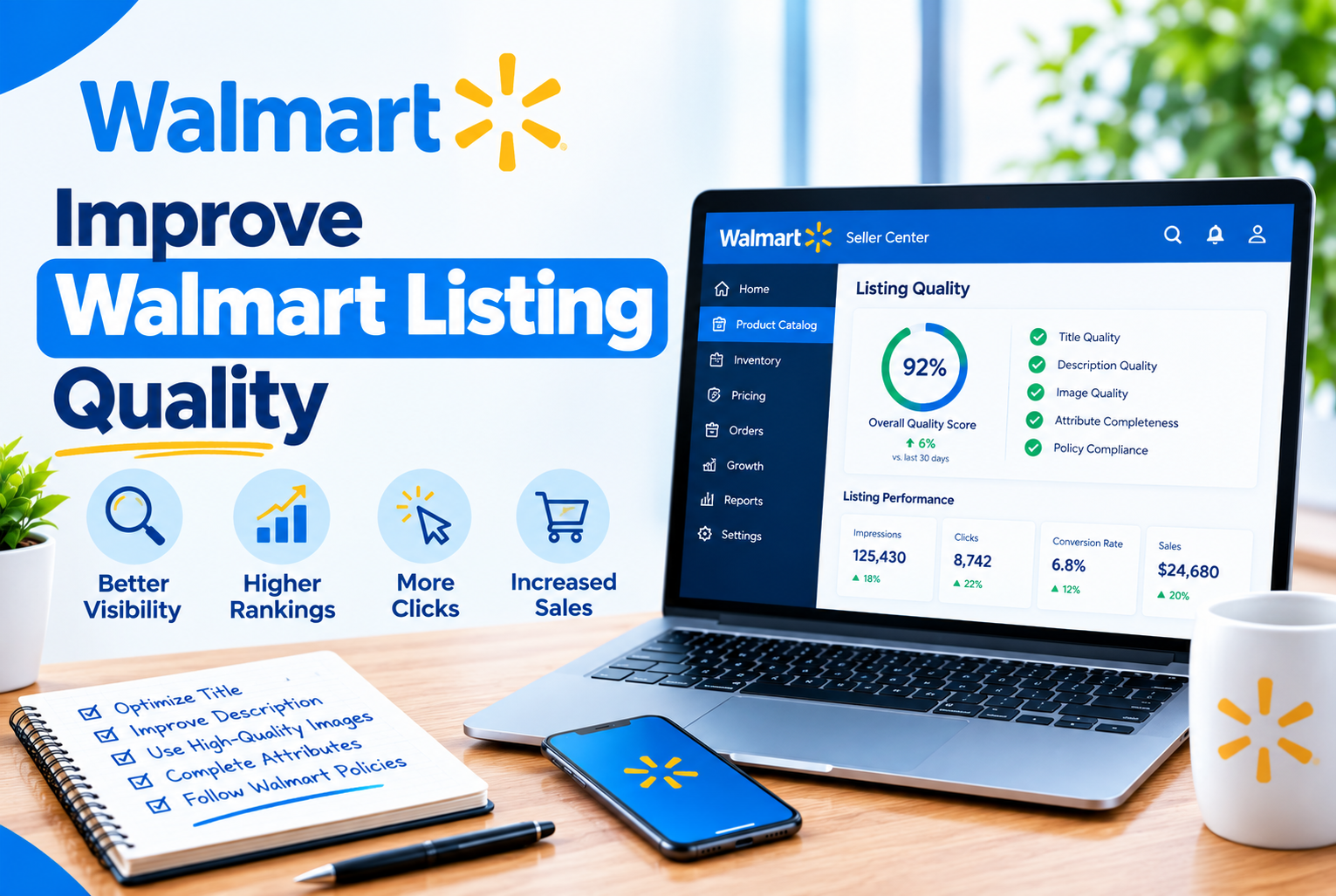
Walmart’s Listing Quality Score (LQS) is one of the most transparent ranking tools available on any major marketplace. Unlike Amazon, which keeps most of its ranking signals opaque, Walmart shows you exactly how your listings are scored, which component is dragging down the overall number, and what specific changes to make to improve it. The dashboard even tells you whether each component ranks as poor, good, or excellent.
Despite all of this visibility, most sellers treat the score as a report card rather than an action plan. This guide explains how the score works, what drives each of its five components, how to use the dashboard to fix issues efficiently, and how a higher score directly affects your search visibility, Buy Box eligibility, and Pro Seller Badge status.
Table of Contents
- What the Listing Quality Score Actually Measures
- How to Access the Dashboard
- The Five Components Explained
- Component 1: Content Quality
- Component 2: Discoverability
- Component 3: Offer
- Component 4: Ratings and Reviews
- Component 5: Published and In Stock
- How to Fix Issues Using the Bulk Attribute Editor
What the Listing Quality Score Actually Measures
The Listing Quality Score is a number out of 100 that Walmart calculates for every published item in your catalog. You have two levels of score: a catalog-level score that is the average across all your listings, and an individual item-level score for each listing.
The score measures how well each listing serves a customer who is trying to find, evaluate, and buy your product. It is not just about having text in every field. Walmart evaluates the quality of that content, how discoverable the listing is in filtered searches, how competitive your price and shipping are, and how your product has performed after purchase.

How to Access the Dashboard
In Walmart Seller Center, go to Growth > Listing Quality.
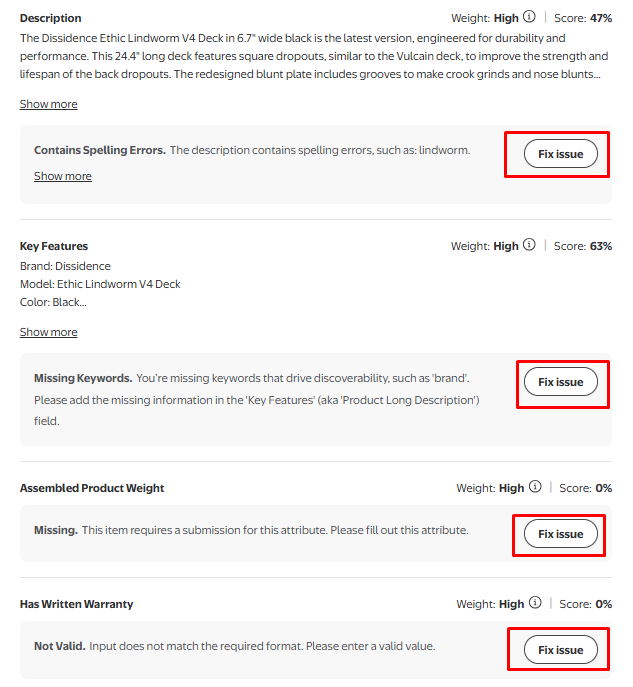
The dashboard opens with your overall catalog-level score and a breakdown of the five component scores. To see the detail for any individual listing, click Fix Issue next to the listing quality.
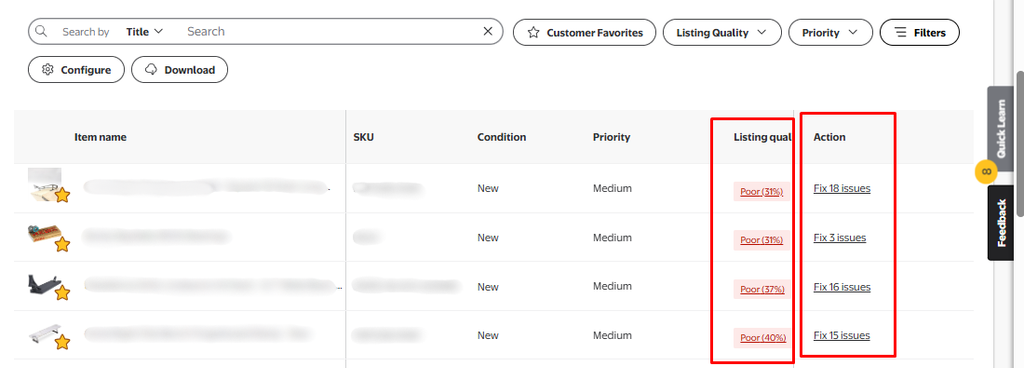
From the item detail view, you can see exactly which attributes are flagged as issues and use the Fix Issue button next to each section to go directly to the field that needs updating. Note that some attributes will show a lock icon, meaning another seller or Walmart controls the content for that field and you cannot edit it directly without brand owner or authorized reseller status.
The Five Components Explained
Every Listing Quality Score is made up of five components. Each is weighted in the overall score, and each can be rated as poor, good, or excellent within the dashboard. Understanding what each component actually evaluates tells you where to spend your optimization time.
Component 1: Content Quality
Content Quality is what most sellers think of first when they hear listing optimization, and for good reason. It covers the four elements a customer sees and reads before making a purchase decision:
- Item Name (Title): Walmart evaluates both length and keyword relevance. Titles should be between 50 and 75 characters, using the format Brand + Key Features + Product Type + Attributes (size, color). Titles that are too long, too short, or that use keyword stuffing score poorly in this component.
- Site Description: Walmart expects at least 150 words. Short or thin descriptions score poorly regardless of how well-written they are. Write for the customer, not the algorithm, but ensure you cover what the product is, who it is for, and what problem it solves.
- Key Features: Up to 10 short, benefit-led statements. Each should highlight a specific feature or advantage rather than repeating information from the title or description. Leaving key features empty or writing generic statements that could apply to any product pulls this component score down.
- Images: Walmart requires at least one image at 1500x1500px on a white or neutral background. Additional images showing multiple angles, lifestyle use, and product details all contribute positively. Images below the resolution threshold appear blurry on zoom and are flagged immediately in the dashboard.
Component 2: Discoverability
Discoverability measures how well your listing can be found through Walmart’s search filters and category browse pages. This is separate from keyword-based search: it is about structured data.
The attributes that drive this component include brand name, manufacturer part numbers, colors, sizes, materials, and any other category-specific attributes that shoppers use to filter results on Walmart.com. A listing with strong content but incomplete discoverability attributes is invisible to any shopper who uses a filter, even if the listing would be a perfect match for what they are looking for.
- Fill in every available attribute in your category, not only the required ones. Optional attributes drive filter-based discoverability just as much as required ones.
- Use Walmart’s approved values for each attribute where dropdown options are provided. Custom values that do not match Walmart’s taxonomy may not be indexed correctly for filtering.
- Review the Discoverability Issues section in the dashboard regularly. Walmart periodically adds new attribute fields to categories, so a listing that was fully complete several months ago may have new gaps today.
Component 3: Offer
The Offer component evaluates your listing based on three factors: price competitiveness, shipping speed, and stock availability. This is the component most directly in your control on a day-to-day basis.
Price Competitiveness
Walmart compares your price against external competing prices for the same product. If your Walmart price is higher than what the same item sells for on another major platform, Walmart may suppress your listing’s visibility automatically. The dashboard shows whether each item is priced lower, at parity, or higher than competing external prices, giving you a clear signal on which items need repricing.
Shipping Speed
The dashboard shows which regions you currently offer fast shipping (five days or less) and free shipping to. Listings that offer free shipping and fast delivery across more regions score better in this component. WFS-fulfilled listings automatically score well here since Walmart handles delivery speed and its fulfillment network covers most of the country.
Published and In Stock
This measures how consistently your item is published and available for purchase over the last seven days. A listing that goes in and out of stock, or that is periodically unpublished due to compliance issues, scores poorly here even if everything else is strong. Consistent availability directly improves this component score.
Component 4: Ratings and Reviews
This component reflects your product’s customer review performance: the number of reviews, the average rating, and the presence of positive recent feedback. Walmart uses this to assess whether the product delivers on what the listing promises.
This is the component you have the least direct control over in the short term, since reviews accumulate over time based on customer experience. What you can do:
- Ensure your listing content accurately describes the product so customers receive what they expected. Mismatch between listing content and the actual product is the most common driver of low ratings.
- Respond to negative reviews where possible to show future customers that issues are taken seriously.
- Use Walmart’s post-purchase communication options to encourage satisfied buyers to share their experience.
Component 5: Published and In Stock
This appears as part of both the Offer component and as a standalone metric in the dashboard. It measures the percentage of time over the past seven days that your item was both published and available to purchase. An item that is live but shows as out of stock, or that was temporarily unpublished due to a compliance flag, scores lower here for every day it was unavailable.
Maintaining consistent stock levels, especially for your higher-velocity products, is the most direct way to protect this score. For sellers using WFS, Walmart’s own inventory management helps smooth out the availability signal.
How to Fix Issues Using the Bulk Attribute Editor
For sellers with a large catalog, fixing content issues one listing at a time is impractical. The Bulk Attribute Editor inside the Listing Quality dashboard lets you update multiple items simultaneously.
- Go to Growth > Listing Quality and select Create Spreadsheet.

- Use the filters to sort by items with issues: Customer Favorites, WFS Items, Attributes with Issues, or by product type.
- Select the attributes you want to update and generate the spreadsheet.
- Fill in the updated attribute values in the downloaded file and save it.
- Return to the dashboard and select Upload Spreadsheet to submit the changes.
| Score updates after a bulk edit are not immediate. Newly published changes can take up to a week to reflect in the Listing Quality dashboard.During busy shopping periods like Q4, updates may take longer than usual. |
The Listing Quality Score dashboard is one of the most actionable tools Walmart gives sellers, precisely because it shows you the problem, the component it sits in, and the edit path to fix it. Most score improvements come down to a handful of repeated issues across a catalog: missing attributes, thin descriptions, and images that fall below the resolution threshold. Fix those systematically and the score reflects it, often within a week.