Getting your first product live on Walmart Marketplace is a different experience from Amazon. The interface is laid out differently, the required fields follow different logic, and the three listing methods Walmart offers each suit a different situation. Choosing the wrong one wastes time before you even start filling in product details.
This guide walks through all three listing methods available, a complete step-by-step walkthrough of the Single Item setup for new products, the fields that matter most for search visibility and the Listing Quality Score, and the most common mistakes that send sellers back to fix things before going live.
Table of Contents
- Before You Start: What You Need Ready
- The Three Listing Methods: Which One to Use
- Method 1: Single Item Setup (New Products)
- Method 2: Express Setup (Products Already on Walmart)
- Method 3: Bulk Upload (Large Catalogs)
- After Submitting: Tracking Your Listing Status
- Common Mistakes to Avoid
Before You Start: What You Need Ready
Walmart’s listing form will ask for specific information as you go. Having these ready before you open Seller Center prevents you from stopping mid-process to dig up missing details.
- A valid UPC, EAN, ISBN, or GTIN for every product. If your product does not have one (for example, private label or handmade items), apply for a GTIN exemption through Seller Center before attempting to list.
- Your internal SKU for each product. Every item in Walmart’s system is tied to a unique seller SKU, which cannot be changed after it is submitted.
- Product title, description, and at least three key features written and ready. Walmart’s AI writing assistant can help generate these, but verifying accuracy yourself before accepting is essential.
- At least one product image at 1500x1500px or higher on a white background. Images below this resolution will hurt your Listing Quality Score immediately.
- Your selling price and shipping weight for each item.
- Country of origin and product dimensions if you plan to use Walmart Fulfillment Services (WFS), since WFS requires additional fields that seller-fulfilled listings do not.
The Three Listing Methods: Which One to Use
Walmart provides three ways to add products to your catalog, and picking the right one based on your situation saves significant time.
- Single Item Setup: For new products not currently offered on Walmart.com. You build the entire listing from scratch including all content, images, and offer details. Best for sellers with fewer than 10 to 20 new products to add at once.
- Express Setup: For products that already exist in Walmart’s catalog. You search by UPC or product name, match to the existing listing, and only provide your seller-specific details like SKU, price, and fulfillment method. Content you do not need to provide yourself since Walmart’s existing catalog data fills it in automatically.
- Bulk Upload: For adding or updating large numbers of products using a spreadsheet template. Best for catalogs of 50 or more items, or for sellers migrating from another marketplace. Walmart provides category-specific Item Spec templates that are regularly updated.
| If a product already exists on Walmart’s catalog and you create a new listing for it instead of using Express Setup, you fragment the review history and split search visibility.Always check whether a product already exists before starting a Single Item Setup. |
Method 1: Single Item Setup (New Products)
Use this path when your product is not currently offered anywhere on Walmart.com.
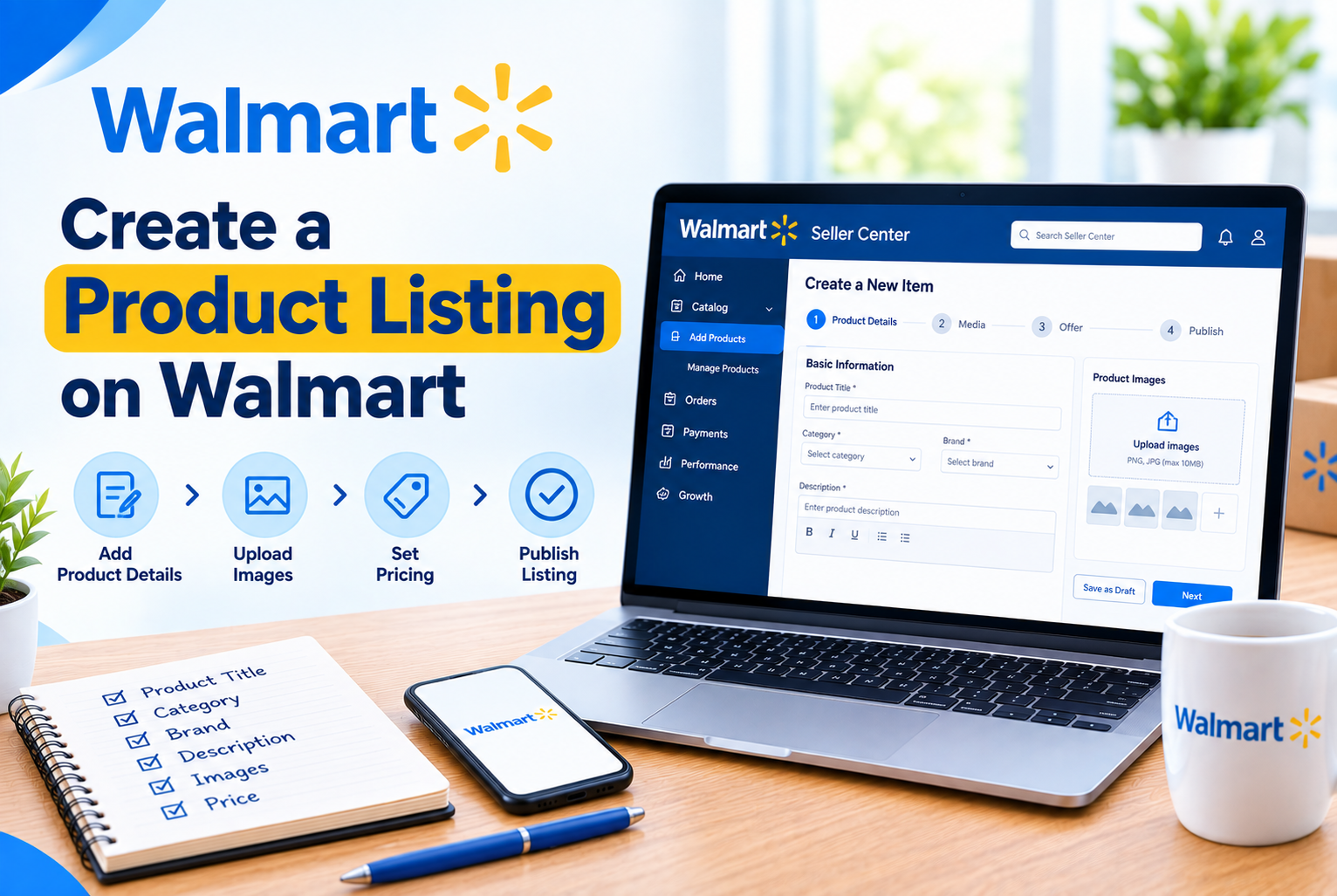
- Log in to Walmart Seller Center and go to Catalog > Add Items.
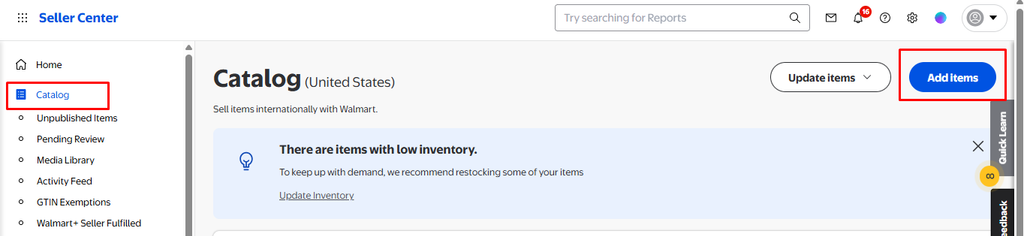
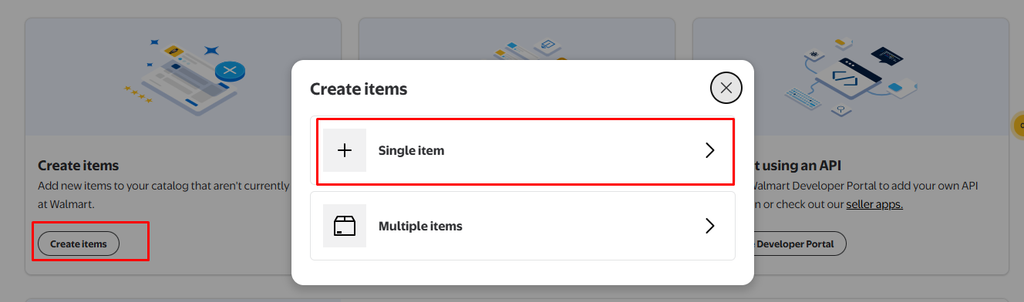
- Click Add Items, then select Create Items, then Single Item.
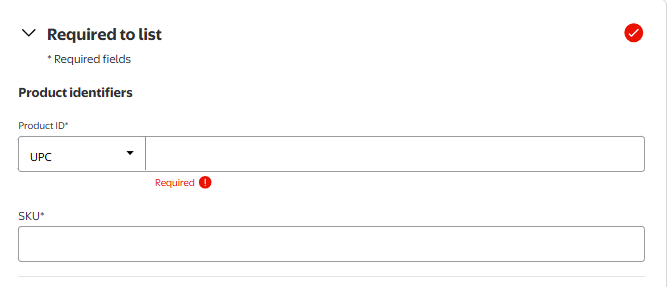
- Enter your product identifier (UPC, EAN, ISBN, or GTIN). Walmart checks whether this item already exists in its catalog. If a match appears, click “Yes, this is it” and most attributes will auto-populate. If there is no match, click “Not my product” and continue building from scratch.
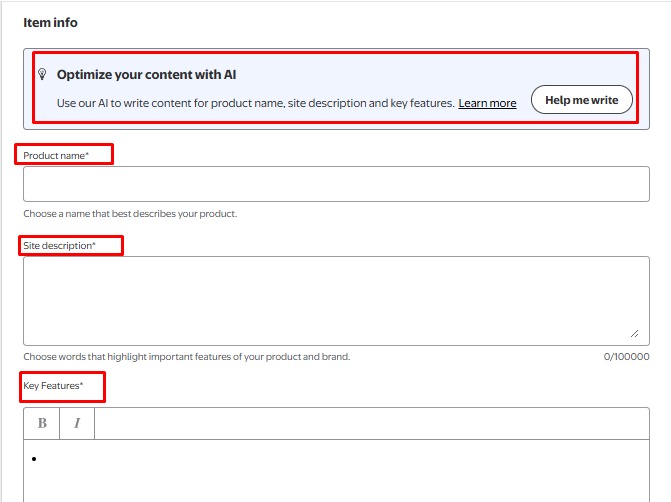
- Enter your product name and select the most specific category and subcategory available. Category selection affects your referral fee rate, which attributes are required, and which browse pages your product appears on, so this step deserves care.
- Complete the Required to list fields. These are the mandatory attributes Walmart needs before it will publish the listing. Every category has a different set of required fields, which is why checking your specific category’s requirements in advance saves time.
- Add your key features (up to 10 short bullet-style statements), site description (at least 150 words), and images. If you want help generating these, click Help me write, describe your product briefly, and Walmart’s AI assistant will generate draft content you can review, edit, and accept.
- Enter your offer details: selling price, SKU, condition, and fulfillment method.
- Review everything, then click Submit at the bottom right of the screen.

| The SKU you enter during item setup cannot be changed after submission.Choose a clear, consistent SKU format before you start, since this becomes the permanent internal identifier for that product in your Walmart catalog. |
Method 2: Express Setup (Products Already on Walmart)
Use this when your product already exists on Walmart.com and you are adding your offer to an existing listing.
- Go to Catalog > Add Items.
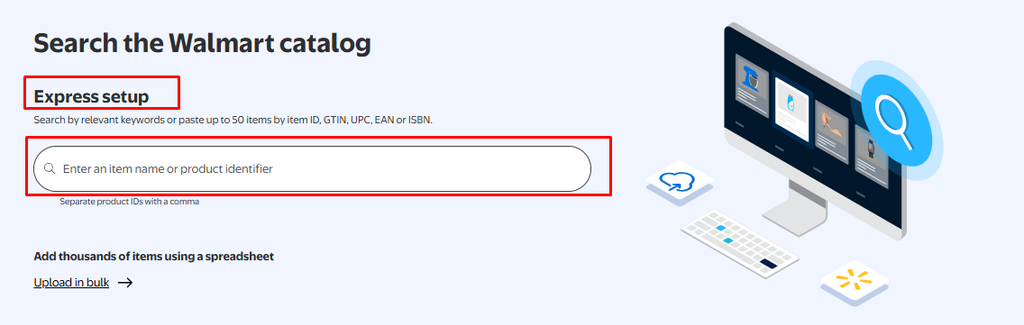
- In the Express Setup search field, enter the product name, keyword, UPC, EAN, ISBN, or GTIN. You can search for up to 50 items at once, separating each with a comma.
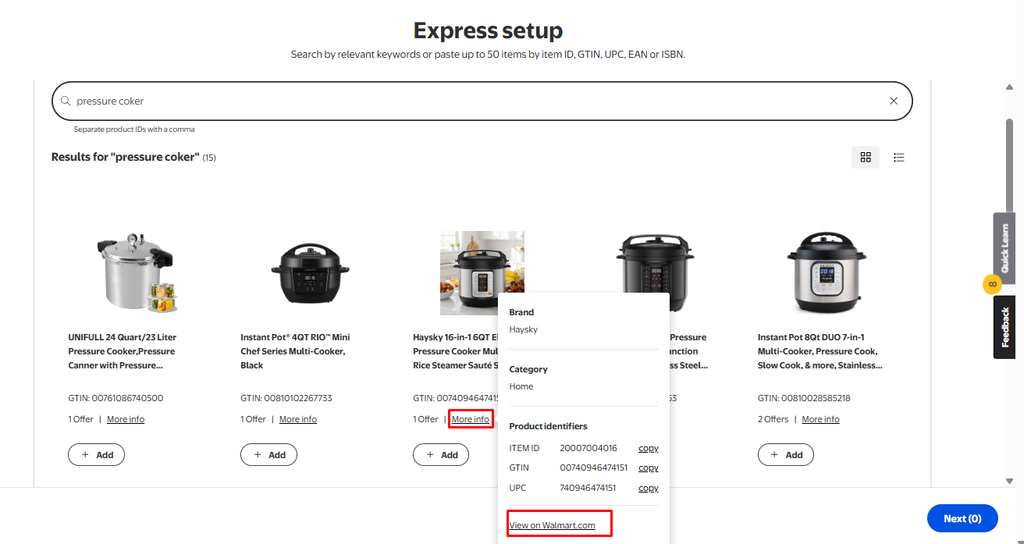
- Review the search results. If more than one item appears, select More info and then View on Walmart.com to confirm you are matching to the correct listing.
- Select the item and click Next, then choose your fulfillment type.
- Add your seller-specific details: SKU, selling price, shipping weight, condition, and country of origin. You do not need to provide images, descriptions, or other content that Walmart’s unified catalog already holds.
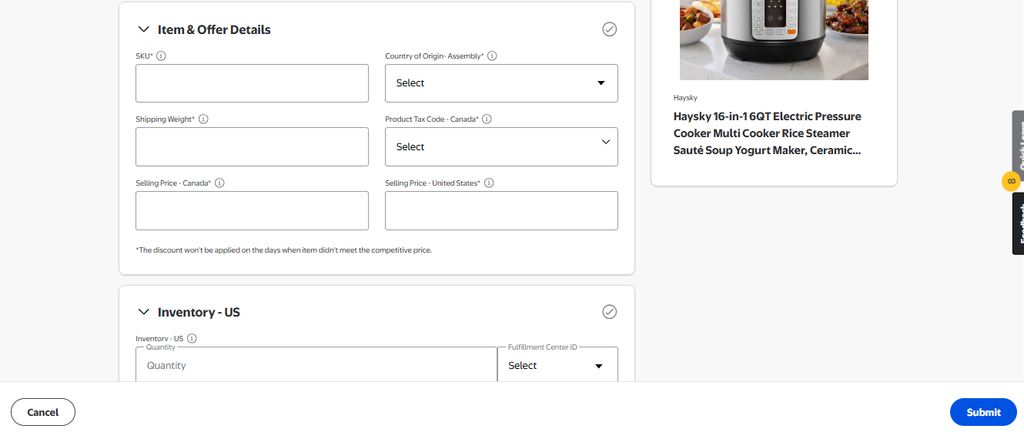
- Click Submit. Track the listing’s progress in the Activity Feed.
| With Express Setup, Walmart determines which seller’s content is displayed on the shared listing.Brand owners and authorized resellers are given content priority. If your content is not appearing, it may be because another seller has priority on that listing. |
Method 3: Bulk Upload (Large Catalogs)
Use Bulk Upload when you are adding 50 or more products at once, or when you want a repeatable, file-based workflow for ongoing catalog management.
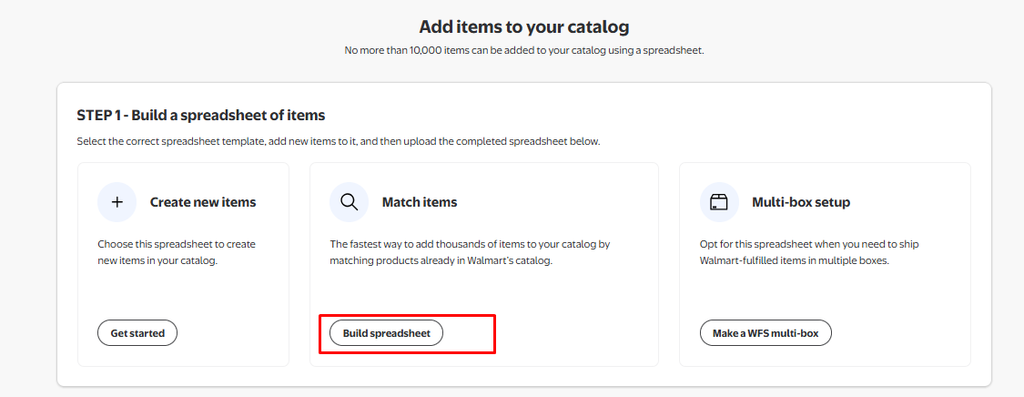
- Go to Catalog > Add Items and select Upload in bulk.
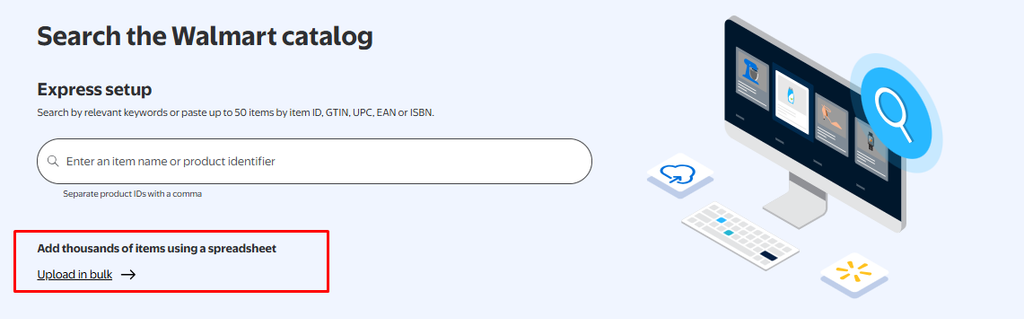
- In the New Items section, click Build Spreadsheet.
- Choose your fulfillment type (seller fulfilled or Walmart fulfilled) and select your product types by searching or browsing categories. Save your selection as a template if you plan to reuse it.
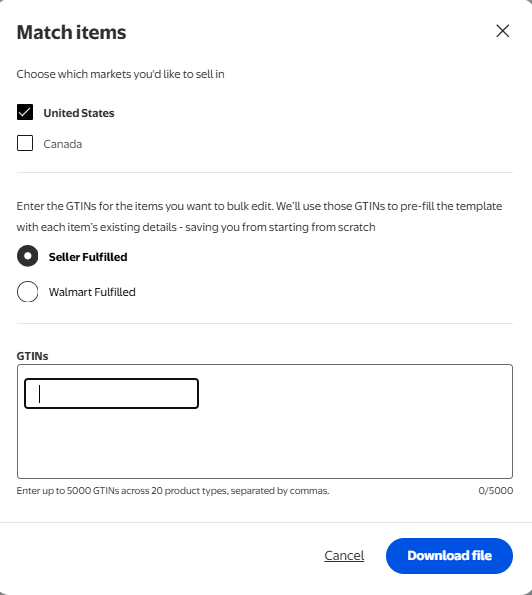
- Download the generated Item Spec spreadsheet and complete it with your product data. The template includes required and optional columns with validation rules to guide you.
- Upload the completed file back into Seller Center and monitor its status in the Activity Feed. Processing can take up to 24 hours, and any data errors will flag in the feed with specific error descriptions.
| Always download a fresh Item Spec template rather than reusing an old one.Walmart updates its Item Spec regularly to reflect new required attributes and category changes, and an outdated template is one of the most common causes of bulk upload errors. |
Common Mistakes to Avoid
- Creating a new listing when the product already exists on Walmart. This fragments the review history and splits search visibility. Always check via Express Setup first.
- Copying your Amazon title verbatim. Amazon rewards keyword-dense titles. Walmart penalizes keyword stuffing and enforces the 50 to 75 character guideline more strictly. Strip your title down to Brand + Product + Key Differentiator + Size or Color.
- Using a SKU you may want to change later. SKUs are permanent after submission. Settle on a consistent naming convention before you start.
- Skipping optional attributes. Optional attributes drive filter-based discoverability. A listing without them is invisible to any shopper narrowing results by a filter your product qualifies for.
- Submitting images under 1500x1500px. Low-resolution images appear blurry on zoom and immediately lower your Listing Quality Score, affecting both search ranking and conversion rate.
- Using an outdated Item Spec template for bulk uploads. Walmart updates these regularly. Download a fresh one each time.