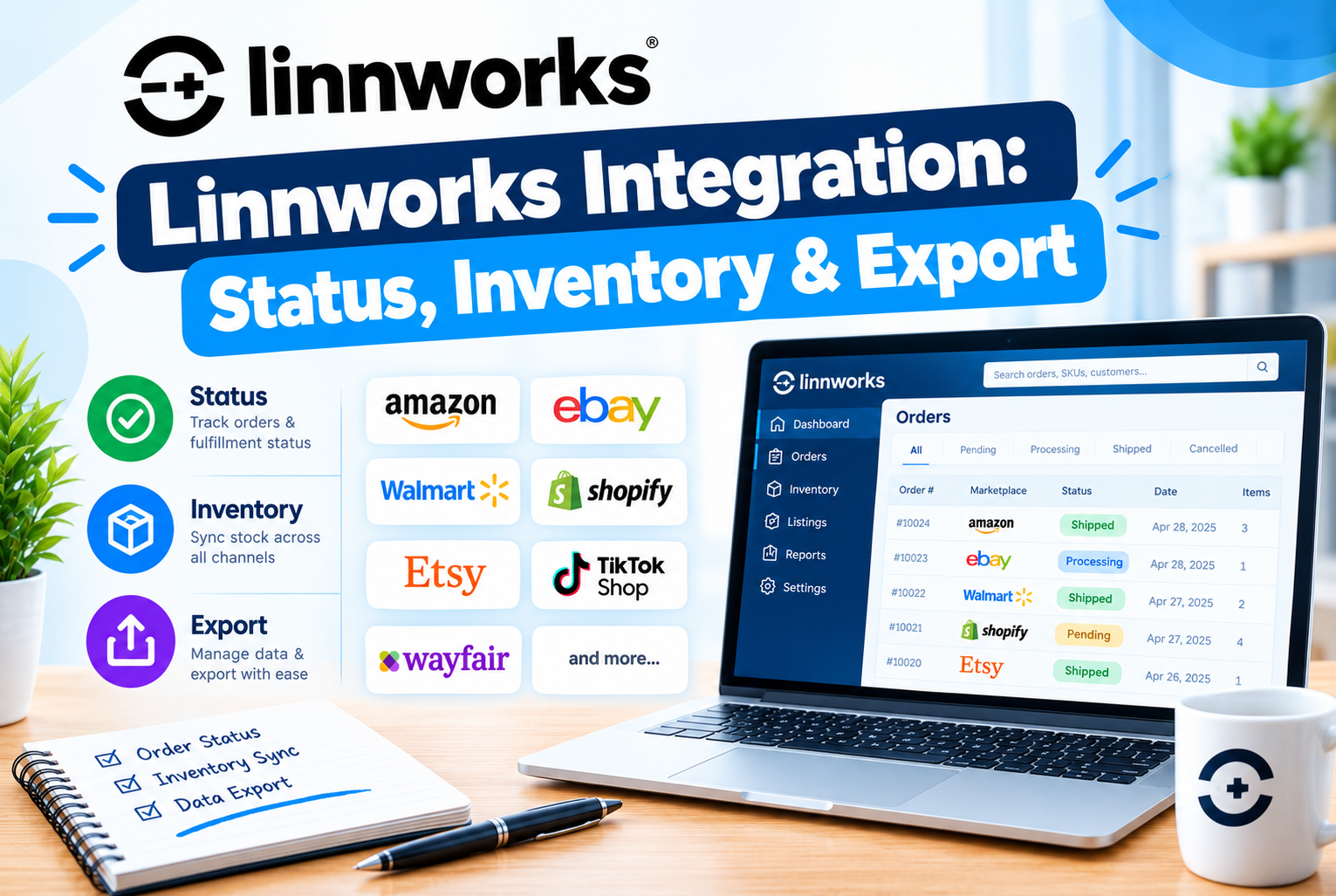
Using Linnworks Inventory Linking to Check Item and Listing Status and Retrieve Data
This documentation explains how to check item status, marketplace listing status, and stock levels using the Inventory Linking page in Linnworks Desktop. It also covers how to search, filter, and export inventory data.
The Inventory Linking feature helps monitor item status across integrated sales channels such as Amazon, eBay, Magento, and other marketplaces. It displays details including SKU, item name, available quantity, and marketplace linking status.
Users can search for specific items or view all items to check whether products are linked or listed on different sales channels. This documentation also explains the symbols displayed on the Inventory Linking page and their meanings.
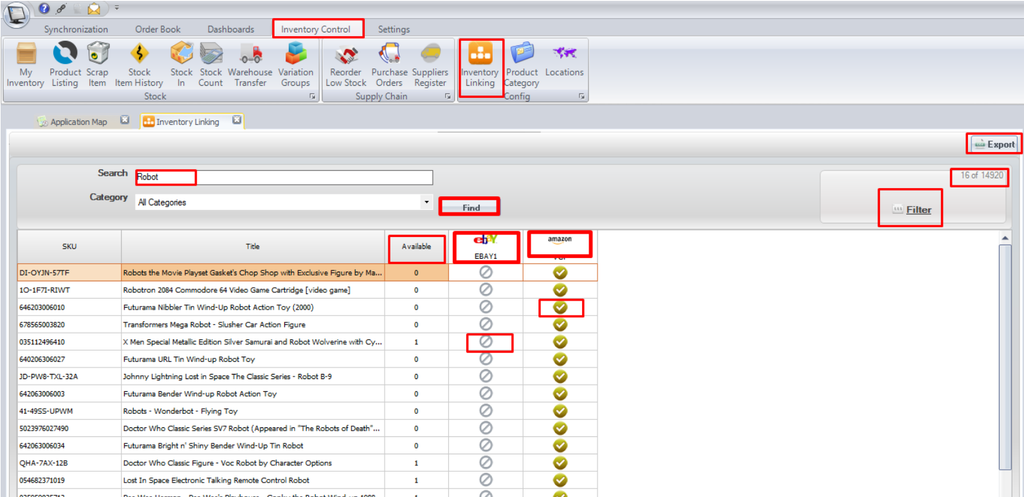
Green Tick Mark: Indicates that the item is listed and linked to a sales channel or marketplace, such as eBay, Amazon, or Magento. Linked items are connected to Linnworks, allowing stock quantities to sync automatically. Click the green tick to view the item’s linking status and mapping details.
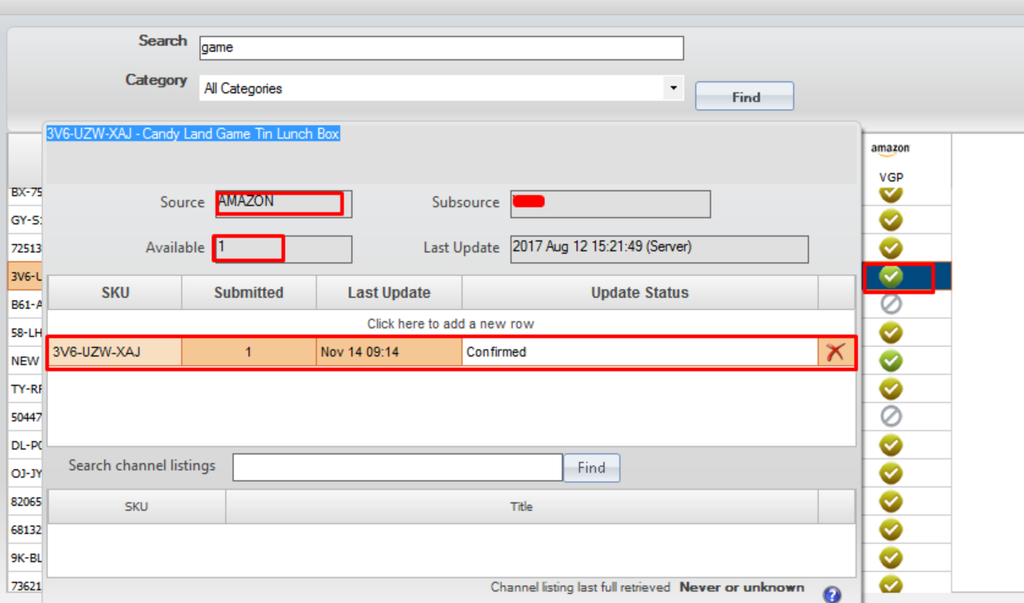
Yellowish-Green Tick: Indicates that the item is listed and linked to a marketplace, but its stock quantity is not syncing correctly.
Grey Circle with a Divider: Indicates that the item is not mapped or linked to a marketplace. Orders and stock updates may not sync correctly with Linnworks.
Linked: Linking connects a Linnworks item to its marketplace listing, enabling stock and order synchronisation. Without linking, stock changes and marketplace orders may not sync correctly.
eBay Icon: Indicates that an eBay listing is unlinked or has ended, rather than being an active linked listing.
Filtration: Use filters to organise and sort inventory results. Click a column heading, such as Available, to sort results in ascending or descending order. For additional filters, click Filter near the top-right corner, below Export. You can also search by category using the Category dropdown.
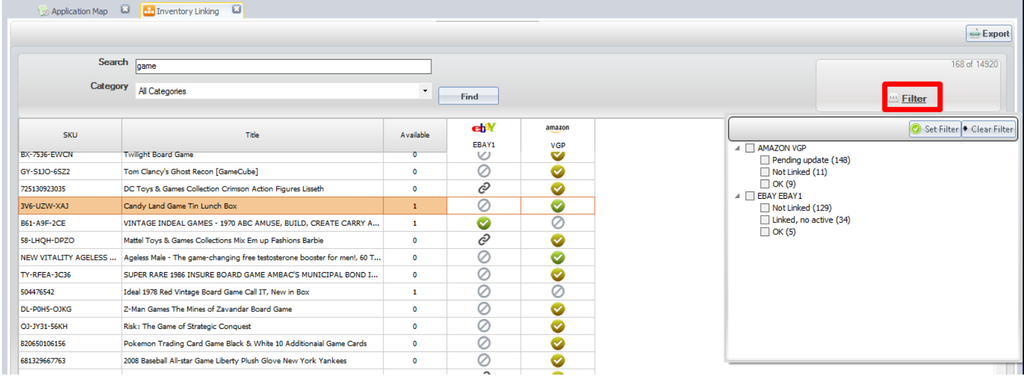
Export: Use this feature to export bulk item data, including SKUs, titles, quantities, stock levels, barcodes, prices, and marketplace listing statuses. First, search for the required items and wait for the results to load. Then click Export and select the columns or information you want to include in the export file. Refer to the screenshot below for the export steps.
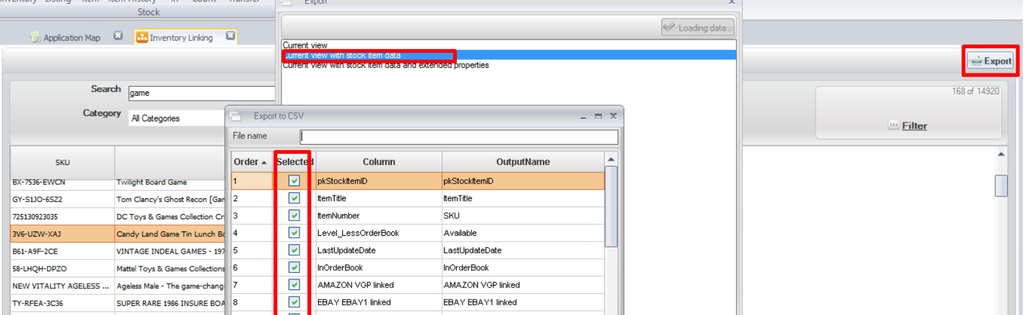
To export only specific information, untick the green checkboxes for the unwanted columns in the marked area, then click Export. This will export only the selected item data.
This article covers Linnworks Inventory Linking, Inventory Export, and marketplace listing status. Stay tuned for more useful Linnworks guides.