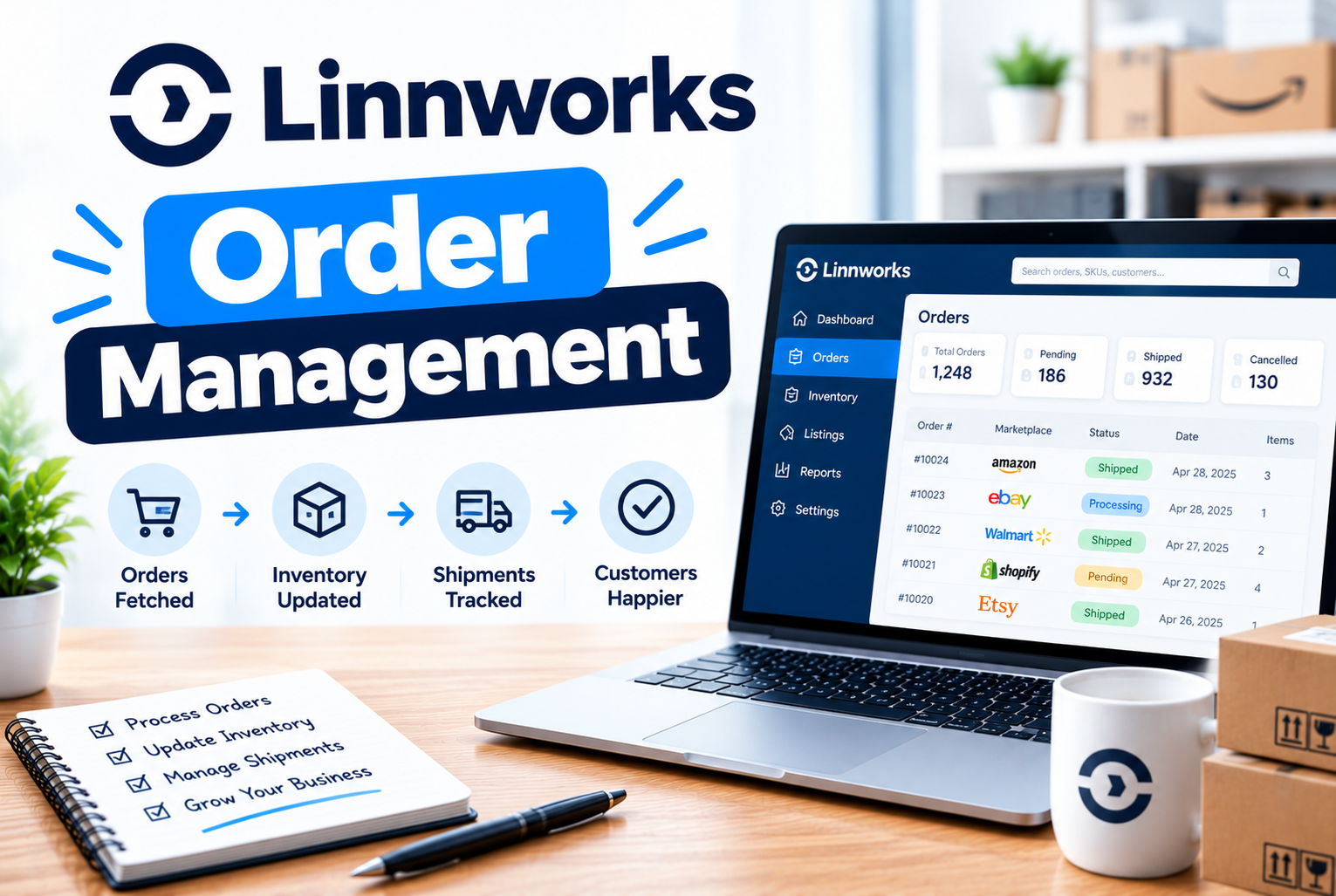
This documentation will guide you through the process of managing and processing orders manually in Linnworks. Although Linnworks is available in both the desktop application and the web-based platform, Linnworks.net, the order management procedures are largely the same across both versions.
Since most of the options and features available in the desktop application are also accessible through Linnworks.net, this guide will focus on demonstrating the order management process using the web-based platform.
Linnworks
Linnworks is a multi-channel eCommerce platform that helps businesses streamline and automate their online operations. Using Linnworks, you can manage orders, inventory, shipping, and product listings across multiple sales channels and marketplaces, including Amazon, eBay, Magento, and other eCommerce websites.
With Linnworks, you can control and manage multiple marketplaces and sales channels from a single, centralized interface, making it easier to coordinate daily operations, improve efficiency, and reduce manual workloads.
Some Important Factors
Before managing orders in Linnworks, it is important to understand how warehouse locations work and how to determine which warehouse should dispatch each item.
Sometimes, the same product may be stored in multiple warehouses. In such cases, you need to assign the correct location in Linnworks to ensure that each order is fulfilled from the appropriate warehouse.
By default, orders are assigned to the “Default” location in Linnworks. To dispatch an item from a different warehouse, you can change its assigned location accordingly. This helps ensure that orders are processed and dispatched from the correct warehouse.
Linnworks Order Management: Step-by-Step Guide
Open Orders is a feature in Linnworks where orders from all connected sales channels and marketplaces are imported and managed in one place. Linnworks automatically downloads or imports incoming orders from these channels into the Open Orders section.
From the Open Orders screen, you can perform several order management tasks, including:
- View and edit order details.
- Print picking lists and packing lists.
- View and print shipping labels.
- Process orders after they have been dispatched.
- Move orders manually from one warehouse location to another.
To manage orders and change their warehouse locations, follow the steps below.
Step 1: Log in to Linnworks
Open your preferred web browser and enter linnworks.net in the address bar to access the Linnworks login page. Enter your email address or username and password, then click Sign In to access your account.
Step 2: Access the Linnworks Homepage
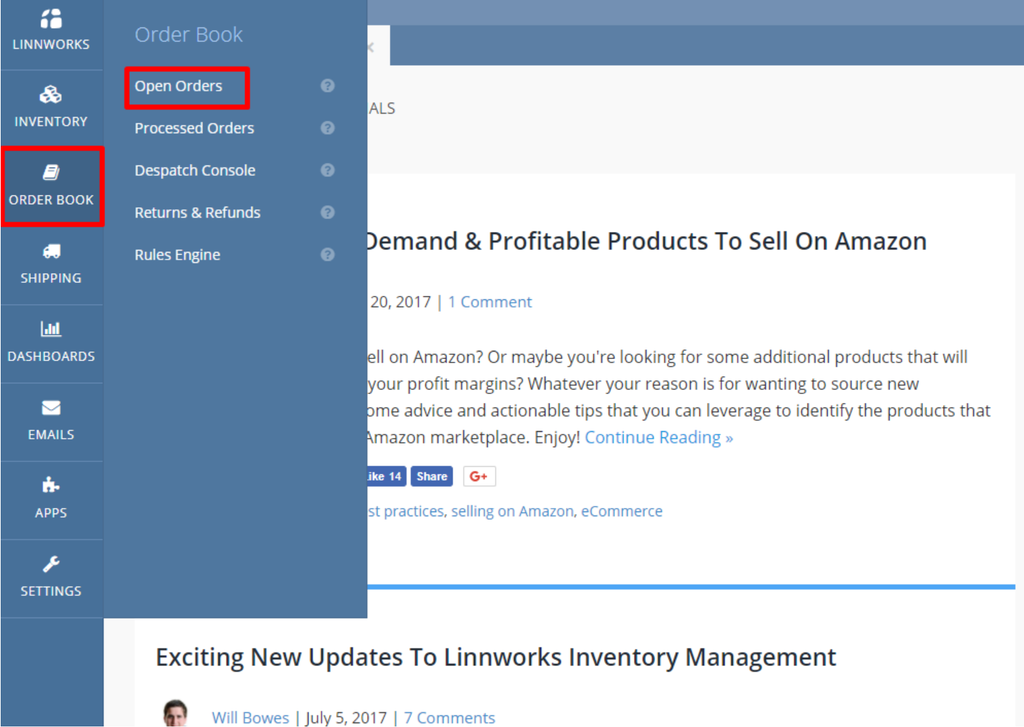
After logging in, you will be taken to the Linnworks homepage. On the left-hand side of the screen, you will find the navigation menu, which contains the different options and features available in Linnworks. Use this menu to navigate to the relevant order management section.
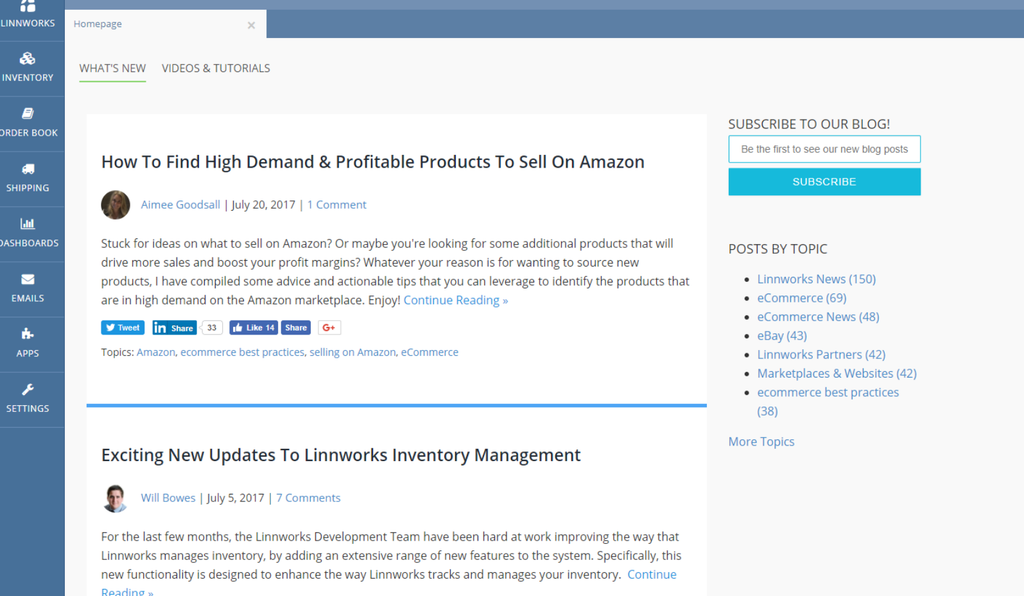
Step 3: From those options, we need to select Open Book and then click Open Orders option.
Step 4: Select the Appropriate Warehouse Location
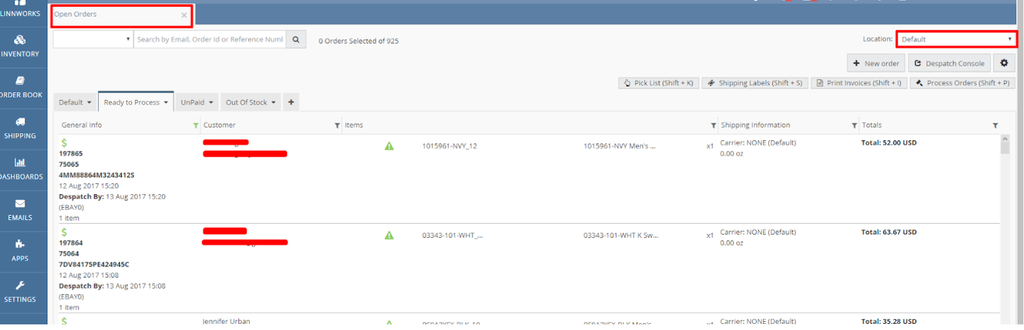
In the top-right corner of the screen, you will find the Location option. Click the dropdown menu and select the warehouse location from which you want the order to be fulfilled.
Important: Changing an order’s location can affect stock levels. Therefore, ensure that your sales channel configuration is set up correctly to update inventory from the appropriate warehouse locations. This helps maintain accurate stock levels across all connected sales channels and marketplaces.
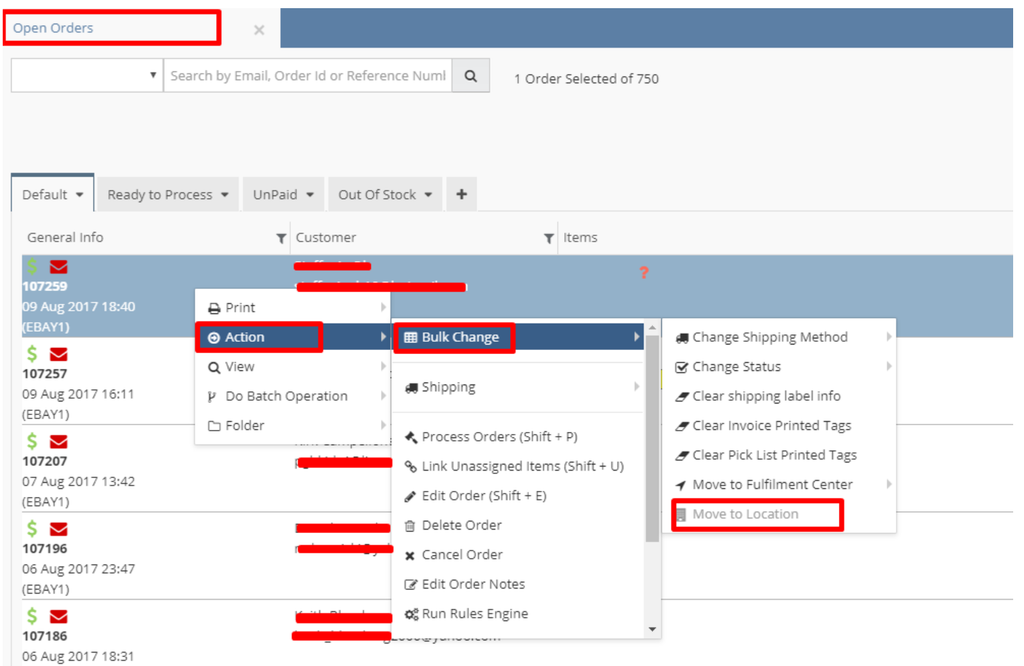
Step 5: From the Open Orders screen, we need to right-click the order or orders which we want to move. From those options we need to select Action then Bulk Change then move to the location.
This article provides a step-by-step guide to manual order processing in Linnworks. We hope this guide helps you understand the order management process and manage your orders more efficiently.
If you have any questions or need further assistance regarding this article, please feel free to contact us. We’ll be happy to help.
Stay tuned to our blog for more useful guides, tips, and tutorials on Linnworks and Ecomstack management!